Navigate the dashboard
The Metadata Capture interface consists of a main menu bar at the top of the page and a working area below it. The working area displays the content based on your selection from the main menu.
If it's your first time signing in, you may see an empty panel. Check your permissions or add your first dataset.
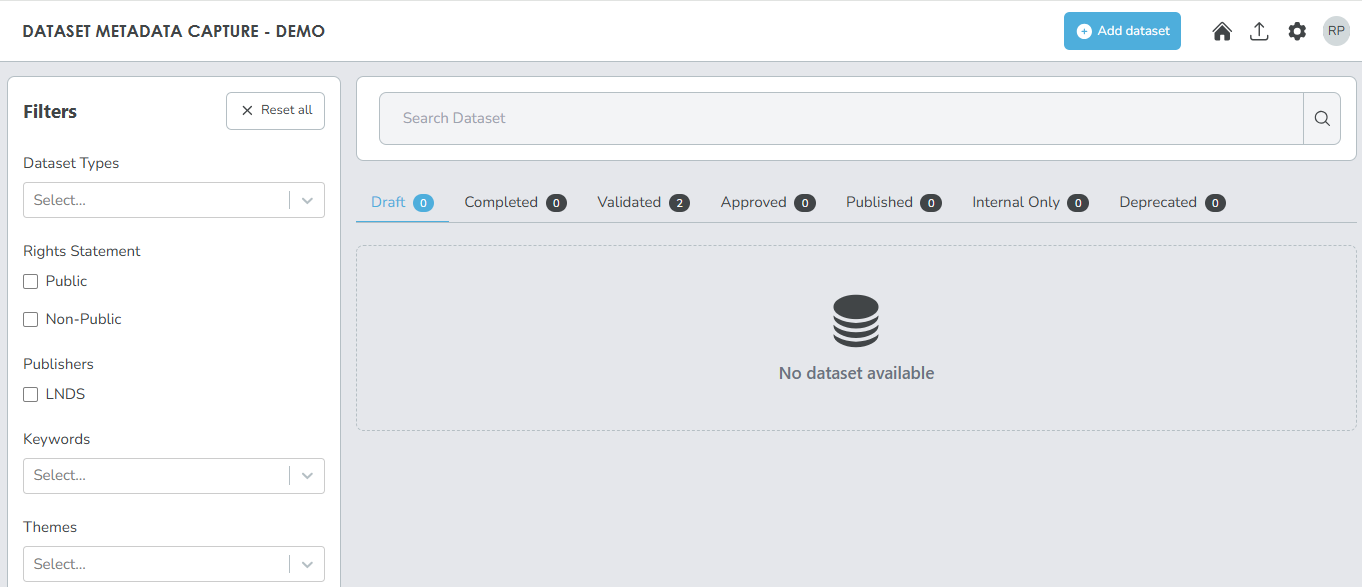
The main menu
The main menu is located at the top right corner of the page and provides quick access to global functions.

- () Switch org: Switch between different organisations if you have access to more than one.
- () Add dataset: Create a new dataset.
- () Home: Go back to the dashboard from anywhere in the application.
- () Upload: Upload datasets from a file.
- () Vocabulary and entities: Manage controlled vocabularies like keywords and legislations.
- () Settings: Access advanced actions like managing keywords, legislations, data services, and organisations.
- () Profile: View your profile and roles.
The dashboard (home page)
The Metadata Capture dashboard is the default view of the working area, where you can manage and view datasets. Everything you see in the dashboard is specific to the organisation you select and the roles assigned to you within that organisation.
The dashboard has the following components:
- Filters panel (left): Filter datasets based on key crieteria defined when the dataset was created.
- Dataset panel (right): Manage dataset records throughout their lifecycle.
- Search bar (top of datasets panel): Search datasets by any keyword or phrase.
Filters and search
Use the filters and search to find datasets quickly. Datasets are displayed based on the filters you apply and the search terms you enter.
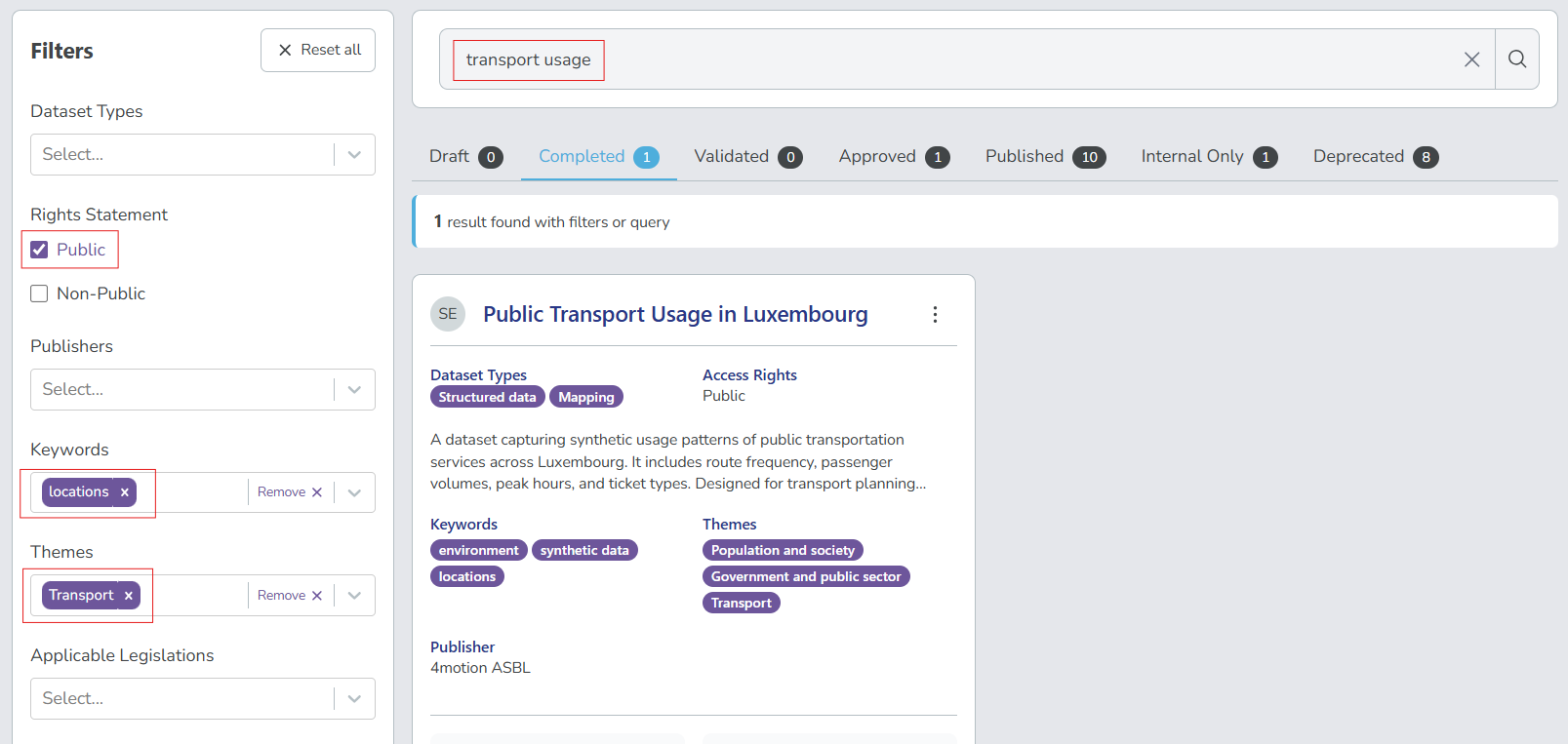
Use filters and search together to progressively refine your results. For example, if you search for "transport", you'll see all datasets related to transport. Then, if you apply a Keyword filter, you'll find datasets related to transport that are tagged with the keyword.
Dataset panel
The dataset panel is where you view and manage dataset metadata throughout their lifecycle.
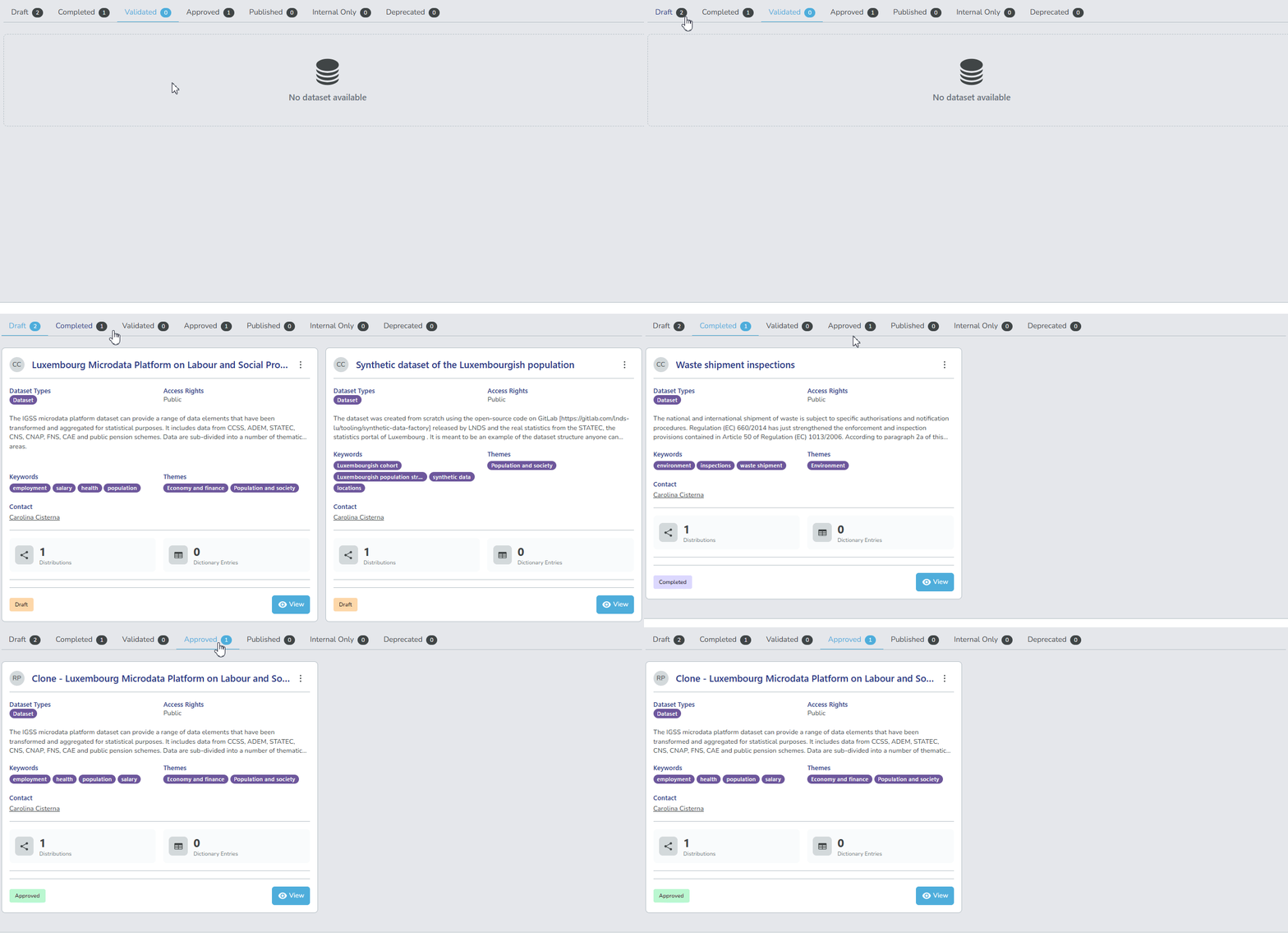
Datasets are displayed in tabs, each representing a stage in the dataset record lifecycle:
- Draft: Datasets that have been added or are being edited.
- Completed: Datasets that are ready for review and validation.
- Validated: Datasets that have been reviewed and are awaiting approval.
- Approved: Datasets that have been approved and are ready for publication.
- Published: Datasets that are live and accessible to all organisations.
- Internal Only: Datasets that are live and accessible within your organisation.
- Deprecated: Datasets that are no longer in use or have been replaced by newer versions.
View dataset details
Select View on any dataset to access its complete information across multiple tabs:
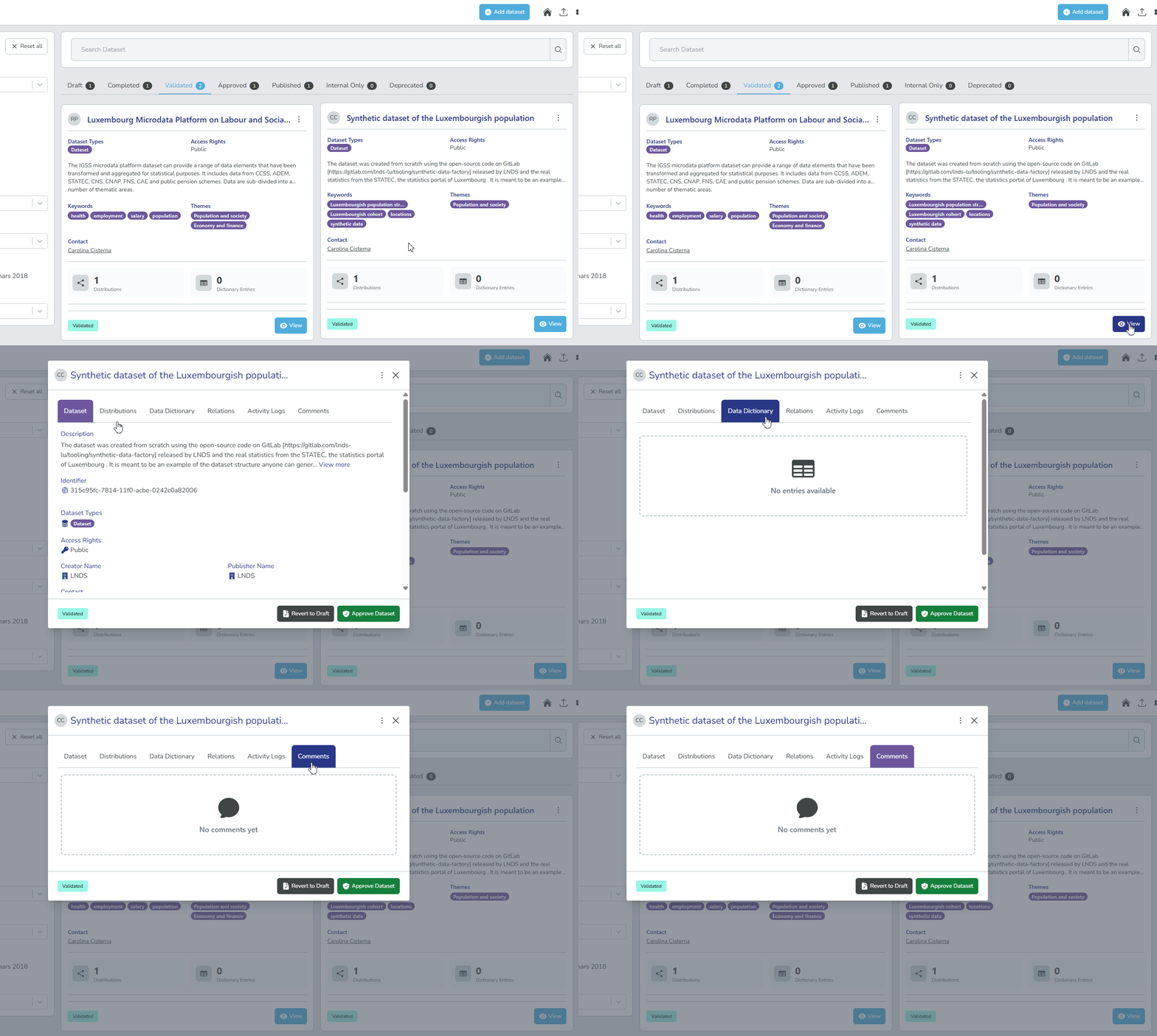
- Dataset: Core metadata (title, description, keywords, themes, etc.)
- Distributions: Download and access options
- Data Dictionary: Field-level documentation
- Relations: Links to related datasets
- Comments: Collaboration and feedback history
- Activity Logs: Complete change and audit trail
See dataset enhancements and vocabulary management to learn more about these tabs.