Create new dataset records
In this guide
Overview
Create dataset records to document and catalogue information about your organisation's data holdings. Providing rich metadata through well-structured records improves data discoverability, understanding, and reuse among data consumers.
There are two ways to create dataset records:
- Individually: (This guide) Add datasets one at a time through the dataset editor.
- Using bulk upload: Add multiple dataset records at once using an Excel file. See bulk upload.
If you're new to creating dataset records, start with understanding the dataset record lifecycle.
Create a dataset
To create a dataset, you must be an Editor or have the permission to add datasets.
-
Select Add dataset on the main menu.

-
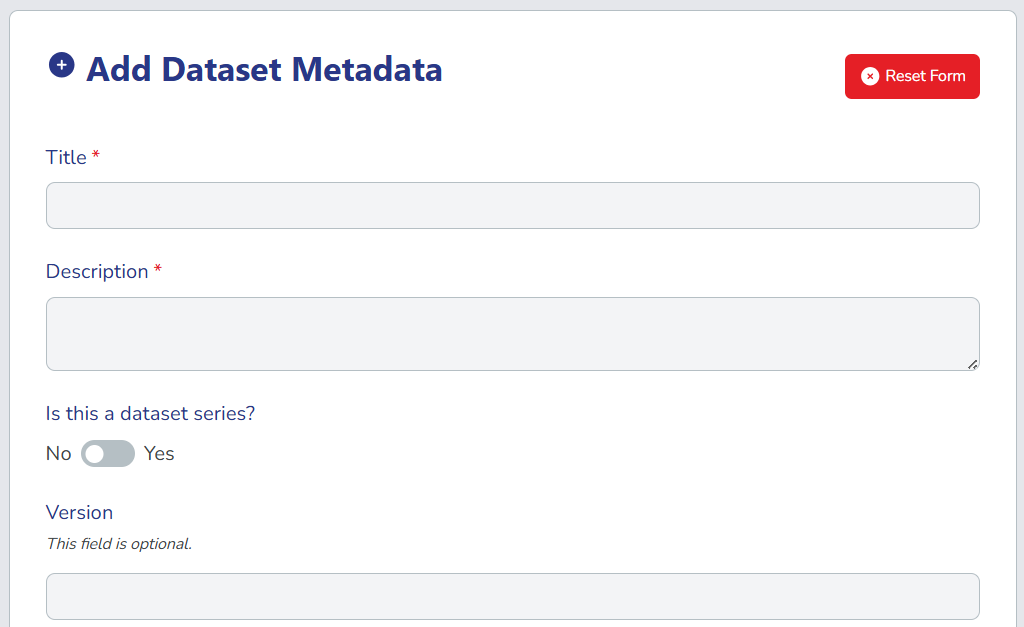
Fill out the dataset form. For guidance on filling out the form, see the definition of properties in the DCAT-AP-LU Vocabulary↗.
Remember- Fill out all mandatory fields (marked with *) to proceed to the next step.
- All dropdown lists are pre-defined based on the DCAT-AP-LU Vocabulary↗ or your organisation's controlled vocabularies. To suggest additional options in the lists, contact your Catalogue Manager or system administrator.
 Health datasets
If your organisation has HealthDCAT enabled, the form includes a "Does this dataset contain health-related data?" selector. Selecting Yes reveals additional health-related metadata fields aligned with the HealthDCAT-AP↗ profile. For guidance on filling out those fields, see: Create health-related dataset records.
-
If you're creating a dataset series, set the Is this a dataset series? toggle to Yes and select the member datasets. For more guidance on dataset record series, see Create dataset record series.
-
Select Add Distributions at the bottom of the form. You must add at least one distribution to your dataset. You can add more distributions after you save the dataset in draft.
-
Select Preview & Save to review the dataset details, and then select Save as Draft to save the dataset record.
Continue laterThe dataset record is now saved in the Draft tab, while the editor remains open. If you want to continue later, you can exit the editor by selecting the Home button or closing the tab, and come back to it from the Draft tab when you're ready to continue editing.
-
Expand your dataset by adding more components. On the left panel, select the component you want to add.
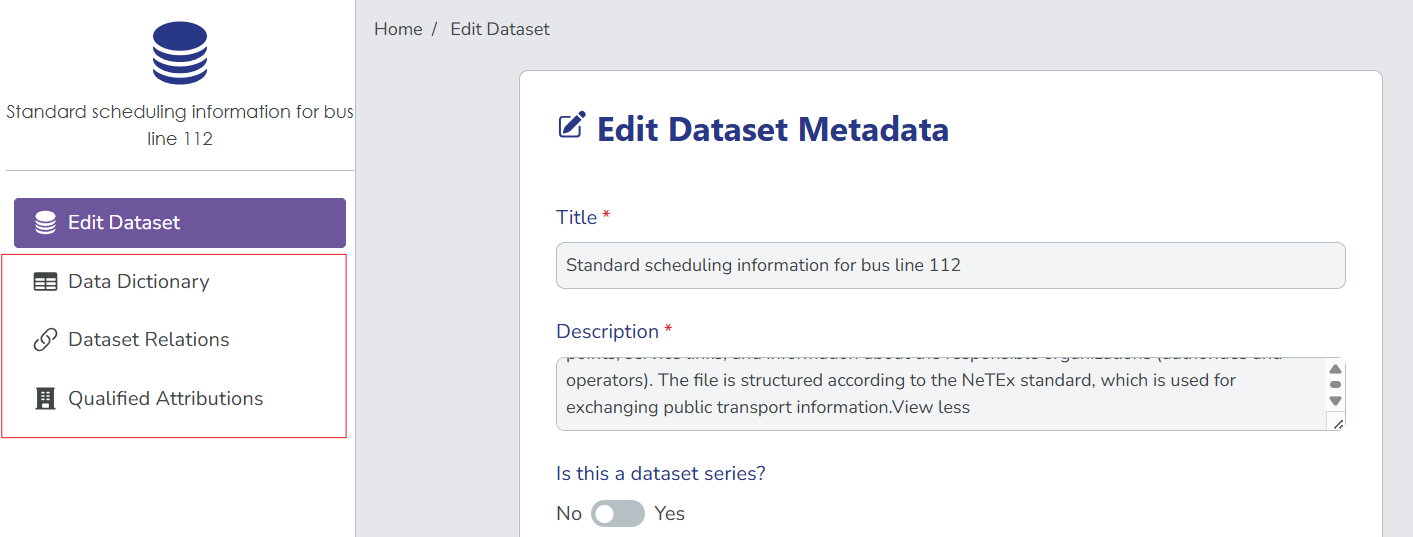
For a step-by-step guide on adding these components, see:
After adding components to your dataset, your changes are saved automatically.
-
When you're ready, submit the dataset for review.