Bulk upload dataset records
In this guide
Overview
Prepare the Excel template
Bulk upload dataset records
Overview
Upload multiple datasets at once using a single Excel file. A template file is available for you to fill out with your dataset information. Bulk upload saves time especially when migrating existing datasets into Metadata Capture or when adding large numbers of datasets at once.
The bulk upload template focuses on core dataset metadata and some optional fields to help you quickly create dataset records. After you upload, remember to add more components to provide more context and information to data users.
Prepare the Excel template
To add datasets in bulk, you must be an Editor or have the permission to add datasets. Check your permissions.
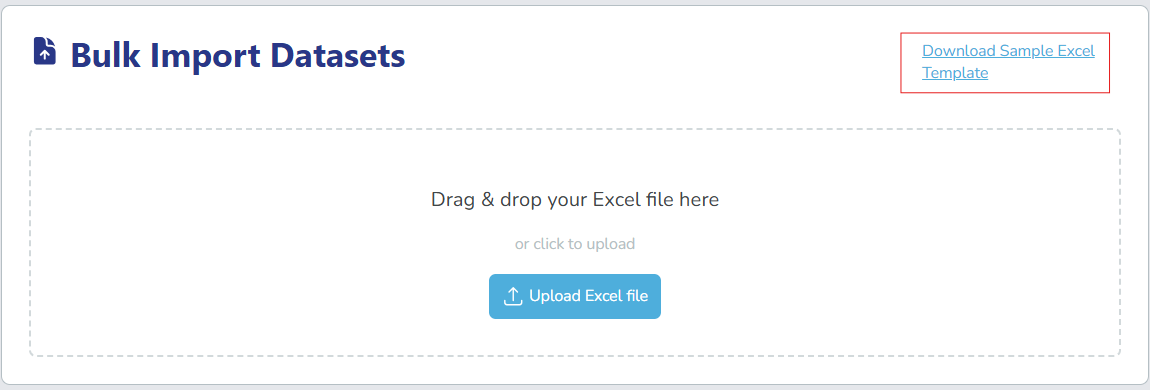
If you do not have a copy of the template spreadsheet or if this is your first time using the bulk upload feature, start by downloading the template:
-
Select the upload icon () on the main menu.

-
Select Download Sample Excel Template.
 Template contains macros
The template downloads as an
.xlsmfile (Excel macro-enabled workbook). You may may experience issues opening files with macros depending on their security settings. If you cannot open the file, contact your IT administrator. -
Open the template and familiarise yourself with its structure. The template contains the following five sheets:

Sheets for reference:
- README: Guidance and conventions for filling out the template
- ControlledVocabularies: Sheet with valid values for formatted fields (green headers)
Sheets for entering data:
- DatasetTemplate: Enter core dataset metadata fields (title, keywords, etc.)
- DistributionTemplate: Enter information about how users can access your datasets
- DataDictionaryTemplate: Describe the structure and meaning of your dataset fields
Template conventionsReview the README sheet for detailed guidance and template conventions:
- Green headers: Controlled vocabularies or formatting rules—refer to the ControlledVocabularies sheet for values
- Fields with
**: Mandatory fields—uploads fail without these values - Fields with
*: Recommended for metadata quality - Use the pipe character (
|): To separate multiple values in a single cell. For example:health|society|policy - Light grey texts: Shows examples for reference
-
Fill out the DatasetTemplate sheet with your dataset information. Use the ControlledVocabularies sheet to find valid values for formatted fields (green headers).
-
Fill out the DistributionTemplate sheet:
- Link distributions to datasets using the DataSet Title column (must match exactly)
- Each row represents one distribution (access method) for a dataset
- A single dataset can have multiple distributions—for example, one for raw data and another for statistical analysis
- Provide the Access URL (mandatory) and Format (recommended) for each distribution
-
(Optional) Fill out the DataDictionaryTemplate sheet:
- Link data dictionary entries to datasets using the DataSet Title column (must match exactly)
- Document each field or column that exists in your actual data source—for example, if your data contains fields like Employee ID, Name, Department, and Hire Date, list each one with its description and data type
- Specify data type (Integer, String, Boolean, Date, etc.) for each field
- Mark personally identifiable variables using
TRUEorFALSE - Data dictionary entries help Data Users understand what fields they'll see when accessing your dataset
-
Save your completed file.
Bulk upload dataset records
-
Select Upload Excel file and upload your completed file.
-
Select Create Dataset. The system processes your file and creates the dataset records with their associated distributions and data dictionaries.
-
After processing completes, the dashboard opens and your new datasets appear in the Draft tab.
Well done! Now that you have created the dataset records, you must submit them for review to move them through the publication process. To understand the dataset record lifecycle after creation, see: The dataset record lifecycle.