Create dataset record versions
In this guide
Overview
Create a new dataset version
How versioning works
Best practices for versioning
Overview
Create new versions of dataset records to maintain a historical record of how published datasets evolve over time. Versioning creates a new draft record that is linked to the original through a version chain, allowing you to track the lineage and evolution of your data while the old version is automatically deprecated.
Create a new version when:
- You add new data to the dataset: For example, you add temperature measurements to a temperature monitoring dataset on a daily, weekly, or monthly basis. Each new version contains all previous data plus the new measurements.
- You add new variables to existing data: For example, some lab results take longer to process than others. Version 1 of your dataset contains the first 10 results for each sample; Version 2 adds an additional 5 results for each sample. All previous data remains available in the new version.
- You correct or adjust data in the old version: For example, you correct or adjust data in the old version, wherein a new variable has been collected for the existing dataset within the same period of time. Therefore, you publish a new version capturing the new variables collected.
Learn more about how versioning works.
Versioning allows you to track the evolution of datasets over time. If you need to group independent datasets into an ordered collection, create a series. If you want to express specific relationship types between datasets (such as "depends on," "is part of"), use dataset relations.
Create a new dataset version
To create a new version of the dataset record, you must be a Catalogue Manager or have the permission to publish datasets. Check your permissions.
-
Go to the Published tab in the datasets panel.
-
Select the options icon ( ⋮ ) on the dataset record, and then select Create a Version.
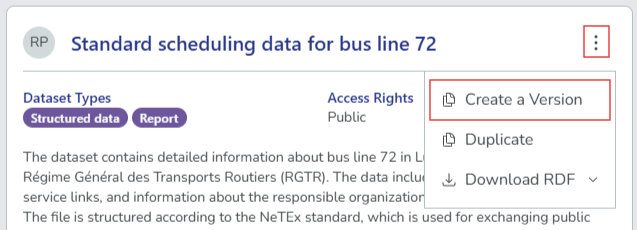
You can only create a new version from a published dataset record that does not already have a newer version. If the dataset record already has a newer version, the Create a Version button is disabled.
-
Select the type of change you want to make in this version:
-
Metadata only: You're only updating metadata fields (description, keywords, and other descriptive information). The underlying data itself remains the same.
-
Data and metadata changed: The underlying data has changed (for example, you've added new records or corrected data values).
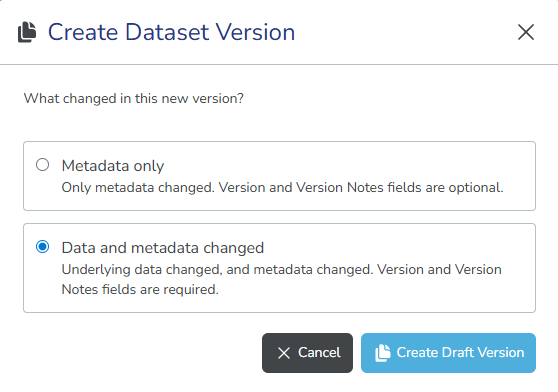
Cannot edit the change type laterOnce you create the Draft of the new version, you can no longer change the version change type. If you need to specify a different type, you must delete the draft version and create a new one with the correct type.
-
-
If you selected Data and metadata changed, make sure to fill in the Version and Version Notes. These fields are required before you can submit the dataset from Draft to Completed.
-
Select Create Draft Version. The system creates a new draft version and opens the editor.
-
Update the new version with your changes, then select Preview & Save to review your changes.
-
Select Save as Draft to save the new version. From here, you can continue editing, submit it for approval, and publish it. See: Dataset record lifecycle.
-
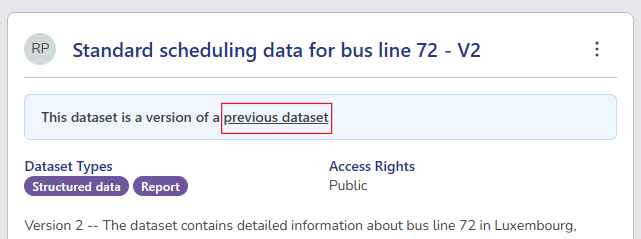
To view the previous version of the dataset record, select the previous dataset record link in the dataset card.
This example shows the link to the previous version and the version change type label on the new version's dataset card:
After publishing the new version, you can view the version history to see how the dataset has evolved over time.
How versioning works
Here's more about the options and behaviour of the dataset versioning feature.
Key versioning rules
- Published records only: New versions can only be created from published dataset records.
- Linear chain: Each dataset can have only one previous version and one next version.
- One active version: Only one version in a chain can be published at a time; publishing a new version automatically deprecates the previous one.
- Types of version changes: When creating a new version, you must specify the type of change to help users understand the nature of changes between versions.
Types of version changes
Each dataset version displays a label indicating the type of change that was made:
- Metadata only changed: Indicates that only metadata fields were updated. The underlying data remains unchanged.
- Data + metadata changed: Indicates that the underlying data was updated (along with any metadata changes). You must fill out the Version and Version notes when publishing the dataset.
- Unspecified change: Displayed for dataset versions created before this feature was introduced. These older versions don't have version change type information.
What's included in the new version
The new version inherits:
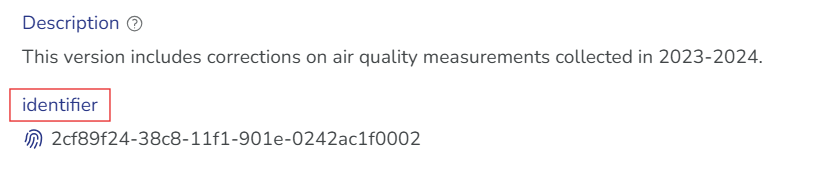
- Identifier: The new version retains the same unique system-generated identifier and links to the previous version. This identifier is visible in the dataset details. Here's an example:
- All metadata fields: Title, description, temporal coverage, and other descriptive information.
- Distributions: Access URLs, formats, and all distribution metadata
- Data dictionary: Entries with authentic source assignments
- Dataset relations: Links to other datasets or external resources
- Qualified attributions: Role assignments for organisations
The new version does not inherit the following from the previous version:
- Activity logs: The new version starts with a fresh activity log
- Comments: Comments are not copied since the new version is a separate draft record
- Version change type: You must specify the type of change when creating the new version
- Publication dates: The approval workflow resets, starting from Draft to Published, with new publication dates
Best practices for versioning
- Use clear version identifiers: Update the
Versionfield to make versions easily distinguishable (for example, 1.0, 1.1, 2.0). For guidance on semantic versioning for data, see the ANDS data versioning guide↗. - Avoid year numbers in version identifiers: Do not use year numbers as version identifiers to prevent confusion with annual snapshots, which should be separate dataset records linked via a dataset series.
- Add version notes: Use the
Version_notesfield to document what changed in this version. - Update temporal coverage: Adjust time periods to reflect the data covered by the new version.
- Review all metadata: Ensure all metadata fields are current and accurate for the new version.
- Verify data dictionaries: Check that field definitions remain relevant or update them as needed.
- Test distributions: Ensure all distribution links and access methods work correctly.
- Add comments during workflow: Use comments when submitting, approving, and publishing to document the versioning rationale.