View version history
In this guide
Overview
Version history allows you to track the lineage of a dataset record record, including all previous and subsequent versions, along with a comparison of what changed between versions.
When a new version is published, the system automatically deprecates the old version and updates the version chain. Email notifications are sent to stakeholders of the old dataset, informing them about the availability of the newer version.
Each dataset version displays a version change type label that indicates what type of changes were made:
- Metadata only changed: Only metadata fields were updated; the underlying data remains unchanged.
- Data + metadata changed: The underlying data was updated along with metadata changes.
- Unspecified change: Dataset versions created before version change types were introduced.
Version history shows changes between published versions, for example v1.0 vs v2.0. If you want to see all edits made within a single dataset record, such as who updated fields or changed a status, check the activity log.
View version history
To view the version history of a dataset:
-
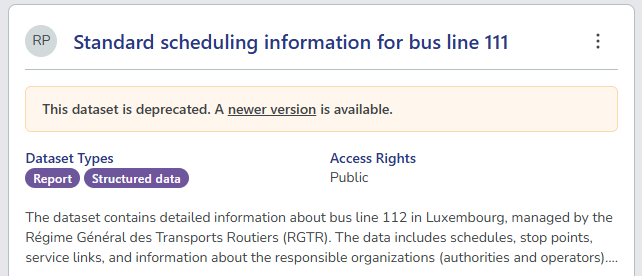
Browse or search for the dataset record you want to view. You can identify versioned datasets by the info panel on the dataset card.
For the current (published) version, the info panel indicates that a newer version exists with a link to it. The panel also displays a version change type label (such as "Metadata only changed" or "Data + metadata changed") to show what type of changes were made in this version.

For the previous (deprecated) version, the info panel indicates that a newer version exists with a link to it.
-
Select View on the dataset card, and then select View Changes.
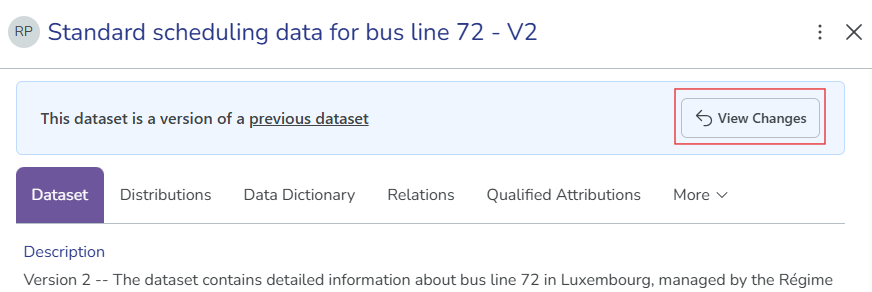
Alternatively, you can select More, and then Versions. The version history appears on the Versions tab.
-
Select Show Changes to expand the version comparison panel.
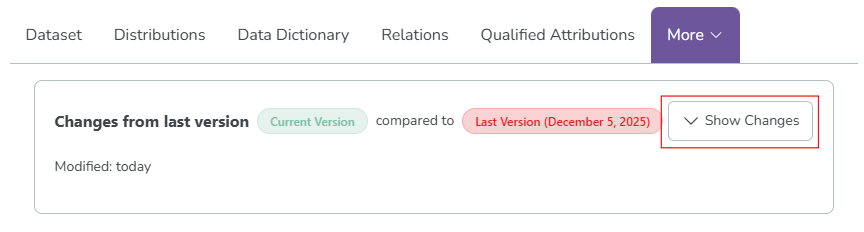
Green highlights indicate the current version (what's added), while red highlights indicate the previous version (what's removed).
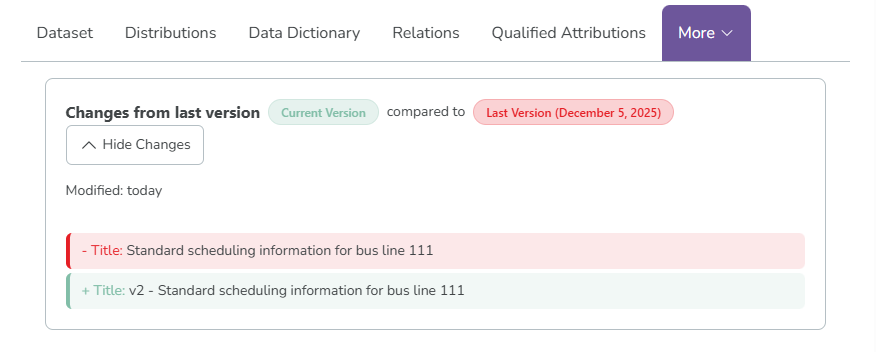
The version change type label helps you quickly understand the nature of changes between versions:
- If you only need the latest metadata, a "Metadata only changed" version indicates the data itself hasn't changed.
- A "Data + metadata changed" label signals that you should review the data itself, not just the metadata.
- "Unspecified change" appears on older versions created before this labeling system was implemented.