View and manage dataset comments
In this guide
Overview
Comments in datasets provide context and communication throughout the dataset record lifecycle. They help you collaborate with others by documenting decisions, asking questions, and providing feedback at each stage of the dataset record lifecycle.
For example: As an Approver who is reverting a dataset to record draft instead of approving it, you might leave a comment explaining the reason for the decision. Or if you are marking a dataset as internal only, you might leave a comment to inform others why the dataset record is restricted.
How dataset comments work:
- You can add comments when performing dataset actions (validate, publish, revert to draft, and so on)
- All comments appear in the Comments tab of the dataset details page in chronological order
- Users with the permission to delete comments can delete any comment (not just their own)
- Comments cannot be delete for datasets in the Published and Internal Only states
View dataset comments
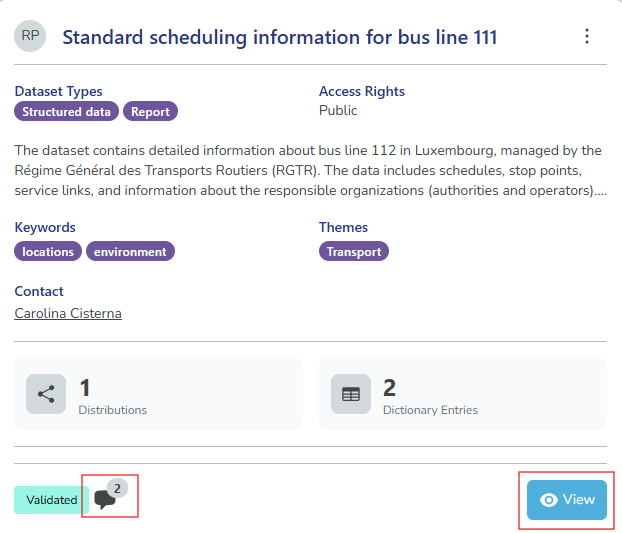
- Search for the dataset record and select View. Datasets with comments show a comment icon with the number of comments on the lower left of the dataset card.
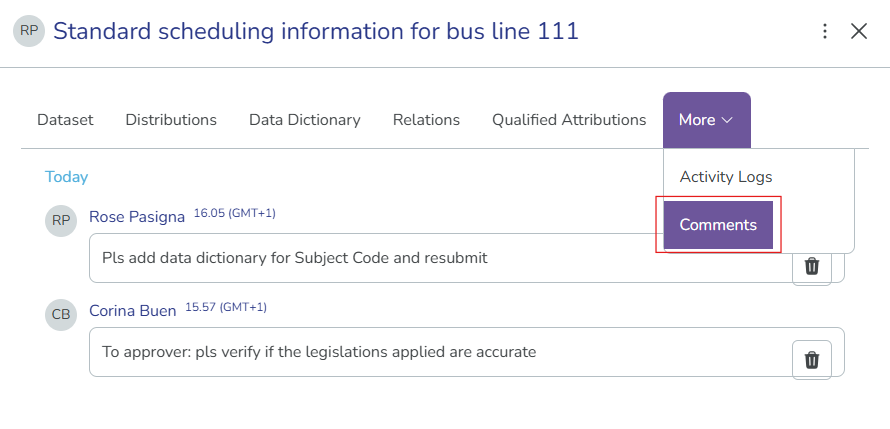
- Select More and then Comments. The comments tab displays all comments associated with the dataset with the most recent comments at the top.
Delete a comment
You can delete comments for datatsets in Draft, Completed, Validated, or Approved status. You must have the permission to delete comments to delete dataset comments. Check your permissions.
To delete a comment:
-
Select View on the dataset.
-
Locate the comment you want to delete and select the delete icon (🗑️).
-
Select Confirm to confirm deletion.
Deleted comments cannot be recovered. Comment deletions are logged in the Activity Log for audit purposes.