Add distributions
In this guide
Overview
Distributions are the different formats or methods for accessing a dataset. Each dataset must have at least one distribution. By adding distributions to your dataset records, you provide Data Users with options for downloading, accessing, or interacting with the data. A distribution can include details such as the format, access URL, and technical specifications like file size or compression type.
For example: A dataset may have multiple distributions such as a CSV file for download or a PDF report.
How distributions work:
- You can add multiple distributions to a single dataset
- If a dataset is published in multiple formats, you must add a distribution for each format
- Distribution information appears in the published dataset metadata
Add a distribution
To add distributions to a dataset, you must be an Editor or have the permission to edit datasets. Check your permissions.
-
Ensure the dataset record is in Draft, or revert it to draft if needed.
-
Open the dataset in the Draft tab using one of the following methods:
- Select the options icon ( ⋮ ) on the dataset record and select Edit
- When adding a new dataset, select Add Distribution at the bottom of the form
-
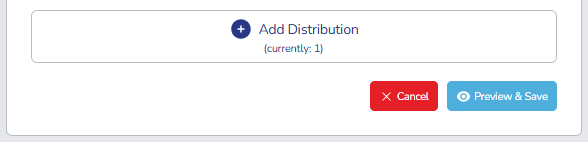
Select Add Distribution in the dataset form. The distribution form appears.
-
Select Preview & Save to save the distribution entry.
-
To add more distributions, select Add Distribution again, and save your changes.
RememberYou must add at least one distribution for each dataset. You can also add multiple distributions to provide different access methods for the same dataset. For example, provide both a CSV file for download or a PDF report.
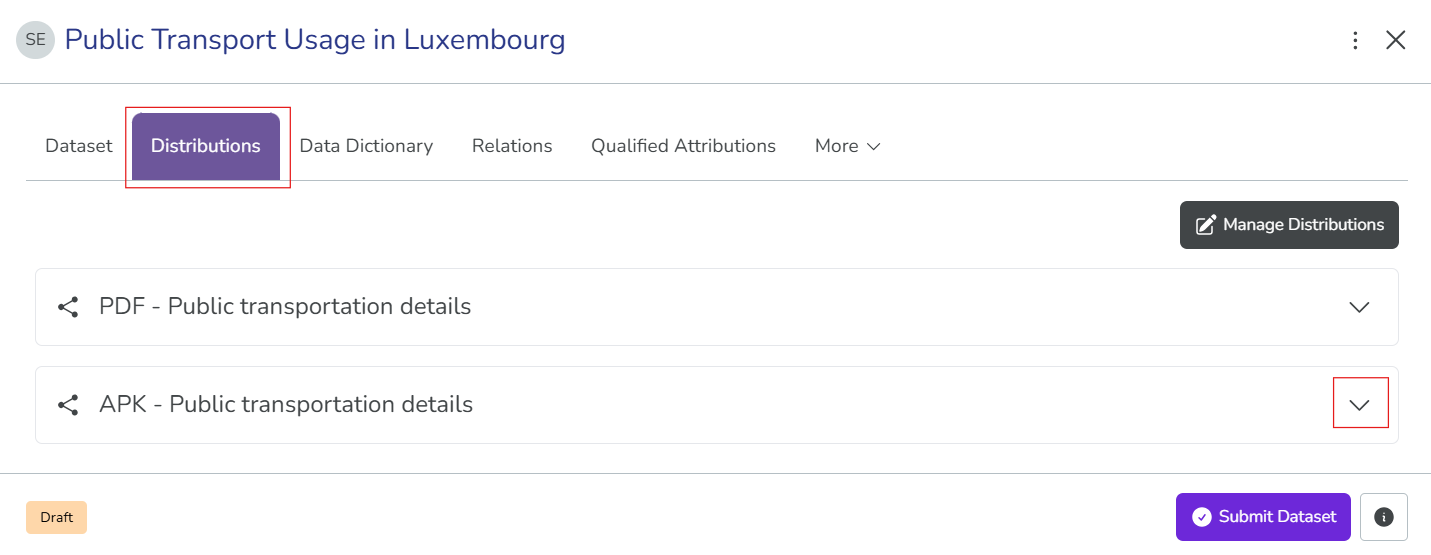
After you add distributions, you can view them when you select the dataset record and go to the Distributions tab:
Manage existing distributions
After you add distribution entries, you can edit or delete them as needed.
-
Open the dataset editor and locate the distribution section.
-
Find the distribution you want to manage in the form.
-
Select your action:
- Edit: Update the distribution details.
- Delete: Remove the distribution entry if it's no longer relevant.
-
Select Preview & Save to save your changes to the dataset.
After you add distributions, Data Users can view the access methods and technical specifications in the published dataset metadata. This helps users understand how to access and use your data effectively.