Add data dictionaries
In this guide
Overview
Add a data dictionary
Understand data dictionary fields
Manage existing data dictionaries
Overview
Data dictionaries document the structure and meaning of individual fields (variables or columns) within your dataset. While your dataset metadata describes what the dataset contains at a high level, the data dictionary explains the specific structure and format of the actual data that users will encounter when they access a structured form of the data, such as CSV files, databases, or APIs. By adding data dictionaries to your dataset records, you help data consumers correctly interpret and use your data, reducing the risk of misinterpretation, misuse, and support requests.
For example: A dataset for Air Quality Measurements 2023 may include fields such as:
station_id: Unique numeric identifier assigned to each monitoring station (integer)measurement_date: Date when measurements were recorded (date format: YYYY-MM-DD)pollutant: Name of the compound being measured (string with allowed values: Ozone, NO2, PM10, and PM2.5)value: Raw measurement value (decimal)unit: Unit of the measurement (string with allowed values: PPM or ug/m3)quality_flag: Data quality indicator (string with allowed values: Valid, Invalid, or Under Review)
How data dictionaries work:
- Each data dictionary entry describes one field (variable/column) in your dataset
- You provide descriptive details and constraints for each field (see: Data dictionary fields)
- The data dictionary should list all variables within the dataset, although individual distributions for the dataset may differ in what they contain:
- Some distributions may include only a subset of these variables, such as anonymised versions that exclude PII fields or summary reports that present aggregated data
- Other distributions may present data in non-structured formats where field-level documentation does not apply, such as audio files, image files, or written reports about the dataset
- Data dictionary entries appear in published dataset metadata, helping data consumers understand the data structure before accessing structured forms of your data
Add a data dictionary
Add data dictionaries to document the structure and meaning of dataset fields. You must be an Editor or have the permission to edit datasets, check your permissions.
To add a data dictionary to a dataset:
-
Ensure the dataset record is in Draft, or revert it to draft if needed.
-
Open the dataset in the Draft tab using one of the following methods:
- Select the options icon ( ⋮ ) on the dataset record, select Edit, and then then select Data Dictionary in the left panel.
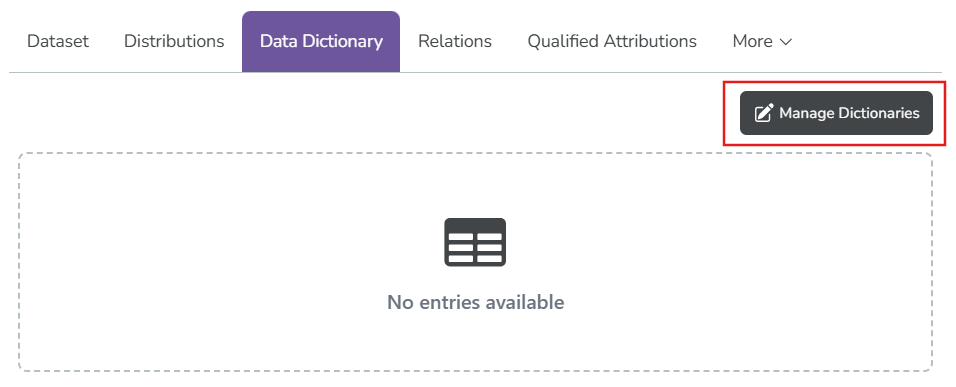
- Select View on the dataset, go to the Data Dictionary tab, and select Manage dictionaries
-
Add your data dictionary entries using one of the following methods:
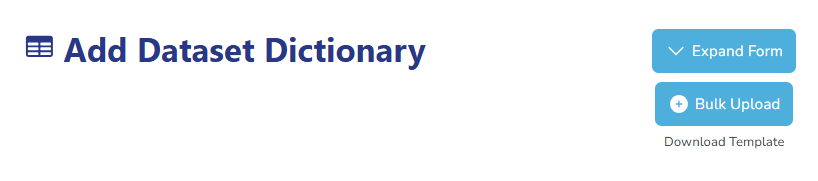
- Add entries manually: Select Expand Form, fill out the form, and select Insert.
- Upload a file: Select Download Template, complete the template, and select Bulk Upload to upload the file
For guidance on how to fill out the form or template, see: Understand data dictionary fields.
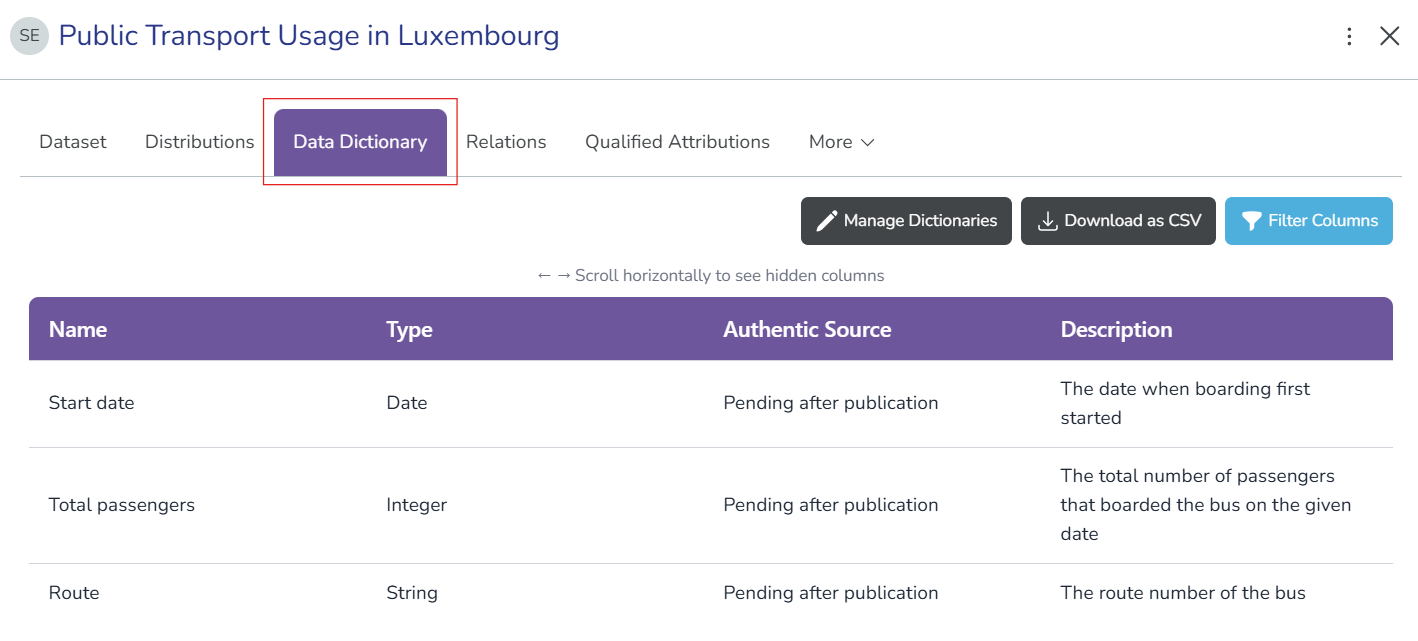
After you add the entries, you can view them when you select the dataset record and go to the Data Dictionary tab:
Understand data dictionary fields
When you add a data dictionary entry manually or by uploading a file, you document the following information about each field in your dataset:
| Field | Required | Description and Usage |
|---|---|---|
Field Namefield_name | Yes | The exact name of the variable or column as it appears in your data. Usenames that match your actual data structure. Example: station_id |
Field Descriptiondescription | Yes | An explanation of what this field represents and contains. Example: "Unique identifier assigned to each air quality monitoring station" |
Field Typedata_type | Yes | The type of data stored in this field: String (text values), Integer (whole numbers), Float (decimal numbers), Date (date values), Boolean (True/False), DateTime (combined date and time) |
Personally Identifiable Informationpersonally_identifiable_variable | No | Mark whether this field contains data that could identify an individual under GDPR regulations: True or Yes for identifying information like names and IDs, and False or No for non-identifying fields. |
Required Fieldrequired | No | Indicate whether this field must contain a value (cannot be empty): True if the field is mandatory in your data structure, or False if it may contain null/empty values. |
Maximum Allowed Valuemax_allowed_value | No | The upper limit for valid values in this field (for numerical fields). Example: For age field, you might set max value to 120 |
Minimum Allowed Valuemin_allowed_value | No | The lower limit for valid values in this field (for numerical fields). Example: For age field, you might set min value to 0 |
Variable Unitvariable_unit | No | The unit of measurement for this field (for numerical fields). Example: kg for weight |
Allowed Valuesallowed_values | No | A list of valid values that this field can contain (for categorical fields). Use the pipe character (|) to separate multiple values. Example: Positive|Negative|Inconclusive |
Allowed Values Descriptionallowed_values_description | No | Explanations for each allowed value (for categorical fields) to help others understand what each code or value means. Example: Positive=Test detected the target condition |
Manage existing data dictionaries
After you add data dictionary entries, you can edit or delete them as needed.
-
Open the dataset editor and select Data Dictionary in the left panel.
-
Locate the entry you want to manage in the table.
-
Select your action:
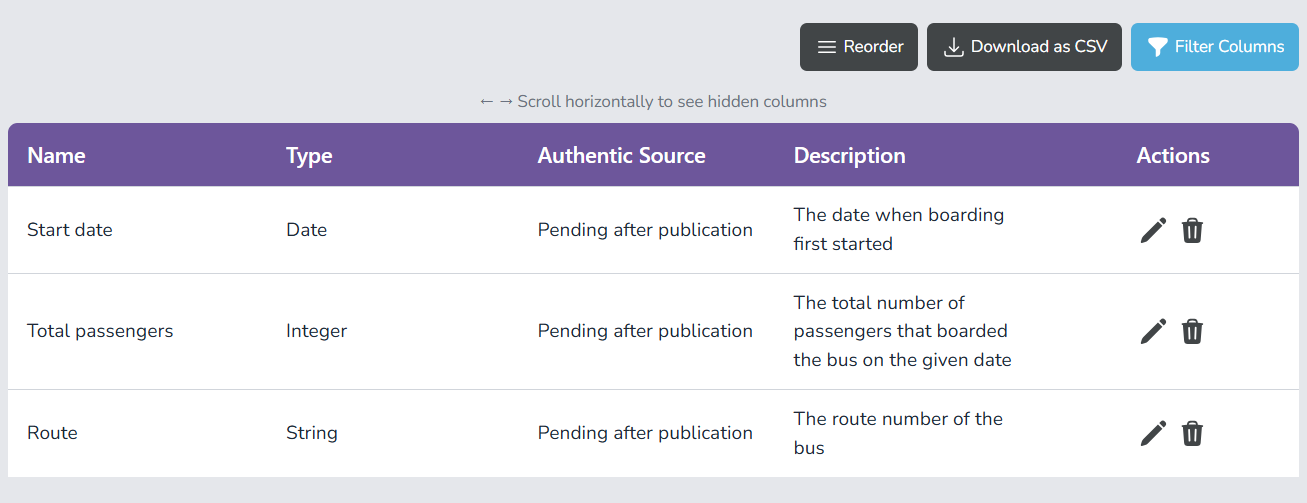
- Reorder: Select Reorder and use the up and down arrows to change the order of entries.
- Edit Select the edit (✏️) icon to update the entry details.
- Delete: Select the trash icon (🗑️) to remove the entry.
After you add a data dictionary, data consumers can view the field definitions in the published dataset metadata. This helps them understand the structure and meaning of the data they'll encounter when accessing your distributions, improving data usability and reducing support requests.