Revert dataset to records draft
In this guide
Overview
Revert dataset records to their draft state to make corrections or updates. This allows you to address feedback, add missing information, or fix errors identified during review.
How it works:
- You can revert dataset records in Completed, Validated, and Approved states directly to Draft.
- Unpublished dataset records (those that moved from Published to Approved) cannot be reverted to Draft. You can duplicate them or create a new version instead.
- For internal dataset records, you must first move them to Validated state, then revert to Draft.
- Deprecated dataset records cannot be reverted to Draft. You can duplicate them or create new versions.
The following diagram illustrates which stages allow reverting to draft:
*Except datasets that moved to Approved state after being unpublished
Here's a quick reference of when you can revert dataset records to draft:
| Record state | Can revert to draft? | Notes |
|---|---|---|
| Draft | N/A | Already in draft state |
| Completed | Yes | Can revert directly |
| Validated | Yes | Can revert directly |
| Approved | Yes | Can revert directly if the dataset record has not been published before |
| Internal Only | No | Must first move to Validated state, then revert |
| Published | No | Cannot revert |
To understand the full dataset record lifecycle, see the dataset record lifecycle.
Revert a dataset to record draft
To revert a dataset to record draft, you must be a Catalogue Manager or have the permission to return dataset to records draft. Check your permissions.
-
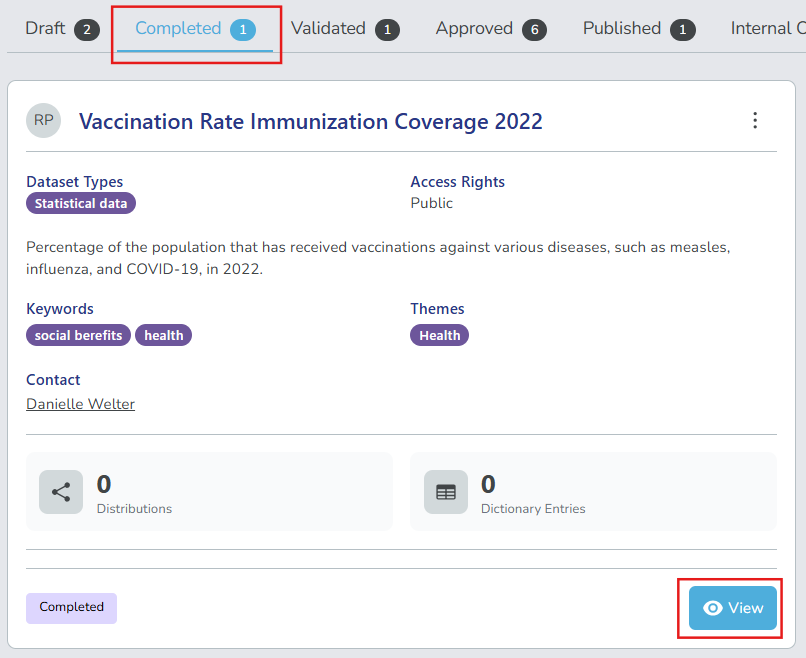
Search for the dataset record you want to revert, or manually locate them in the datasets panel.
-
Select View on the dataset record you want to revert.
Remember- For Approved datasets, the Revert to Draft option is only available if the dataset record has not been published before.
- You can no longer revert a dataset record to draft once it has been published.
- If the dataset record is in Internal Only state, you must first move it to Validated state, then you can revert to draft.
-
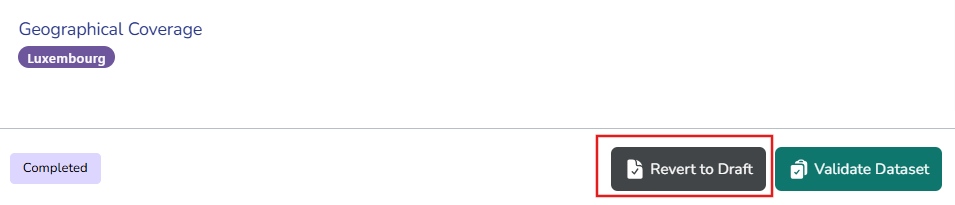
Select Revert to Draft. The comment box appears.
-
(Optional) Enter a comment explaining why you are reverting the dataset to draft state.
-
Select Revert to Draft to confirm. After the dataset record is reverted, it appears on the Draft tab, and is ready for further edits.