Validate dataset records
In this guide
Overview
Validate the accuracy of datasets that have been submitted for review. During this stage, ensure that metadata fields are filled out correctly and that the information accurately represents the underlying data.
To understand how datasets record progress through different stages, see the dataset record lifecycle.
Validate a dataset
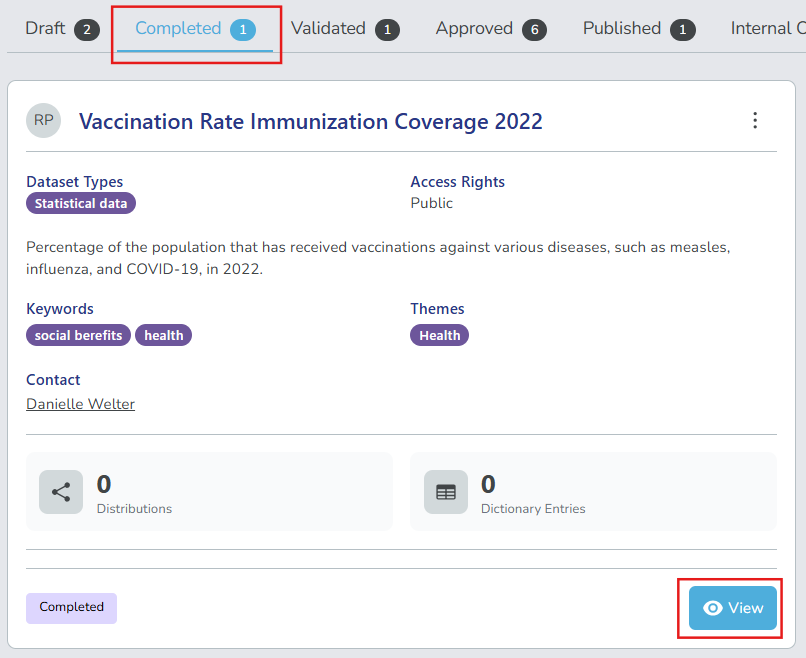
You must be a Metadata Reviewer or have the permission to validate dataset records. Check your permissions. Datasets awaiting validation are found in the Completed tab of the datasets panel.
-
Go to the Completed tab in the datasets panel.
-
Select View on the dataset record you want to validate.
-
Review the dataset details found in the different tabs: Dataset, Distributions, Data Dictionary, Dataset Relations, Qualified Attributions and Comments.
-
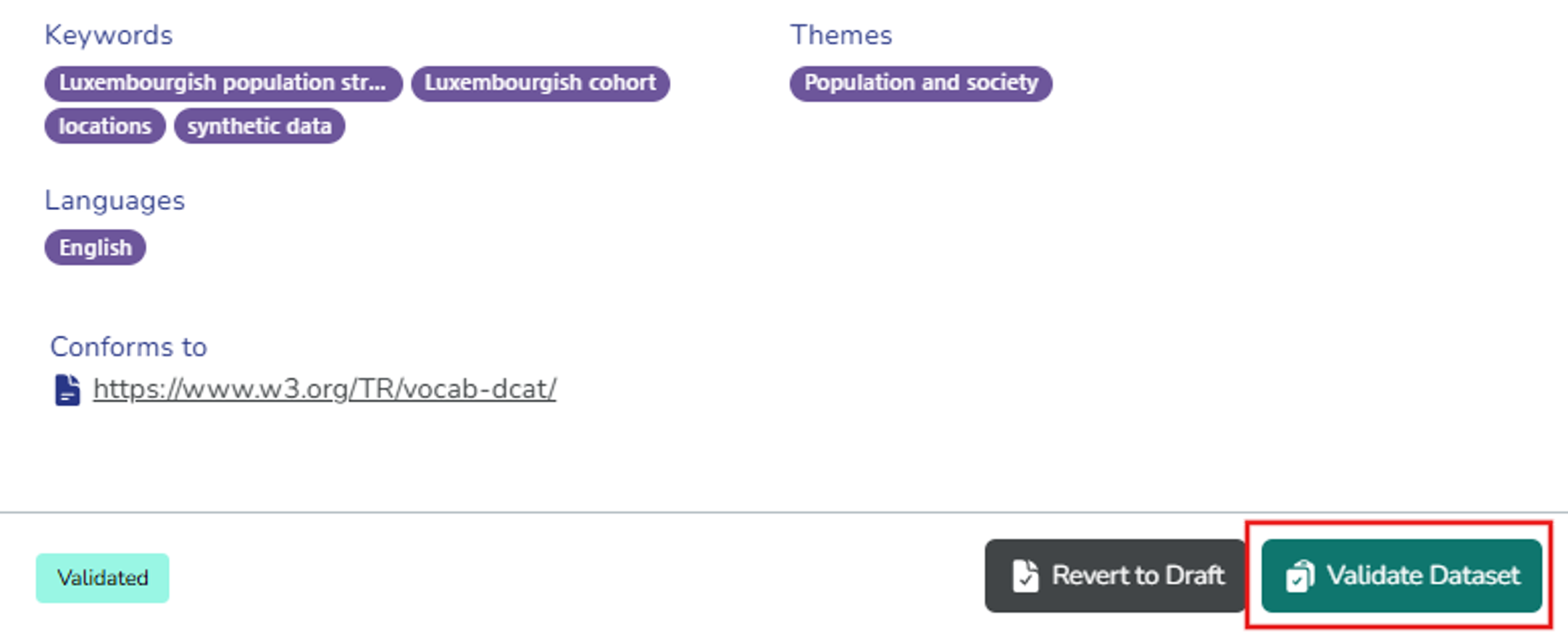
Select your action based on whether the dataset passes national legal requirements and national legal frameworks:
-
Validate Dataset: If the dataset record passes. Add comments as needed to provide context to other collaborators, and then select Validate Dataset again to confirm validation. The dataset record moves to the Validated tab and is ready for approval.
-
Revert to Draft: If the dataset record needs changes. Add comments explaining the required changes, and select Revert to Draft again to confirm. The dataset record moves back to the Draft tab for edits.
-