Manage dataset relations
In this guide
Overview
Add dataset relations
Manage existing dataset relations
Overview
Dataset relations are the connections between your dataset and other datasets or external resources. Adding relations to your datasets helps users discover connected data sources and understand how your dataset fits within the broader data landscape—enhancing context and discoverability.
For example: A dataset for Air Quality Monitoring 2024 may be linked to another dataset called Weather Patterns 2024 within Metadata Capture. At the same time, it may also link to an external air quality standards document. By adding these relations, Data Users can explore connected resources when the dataset is published.
How dataset relations work:
- You can add multiple relations to show how datasets complement each other
- Relations can connect to datasets within the platform or external URLs outside the platform
- Relation details appear in published dataset metadata
Add dataset relations
Add dataset relations to connect your dataset with other datasets or external resources. You must be a Editor or have the permission to edit datasets. Check your permissions.
-
Ensure the dataset is in Draft, or revert it to draft if needed.
-
Open the dataset in the Draft tab using one of the following methods:
- Select the options icon ( ⋮ ) on the dataset and select Edit
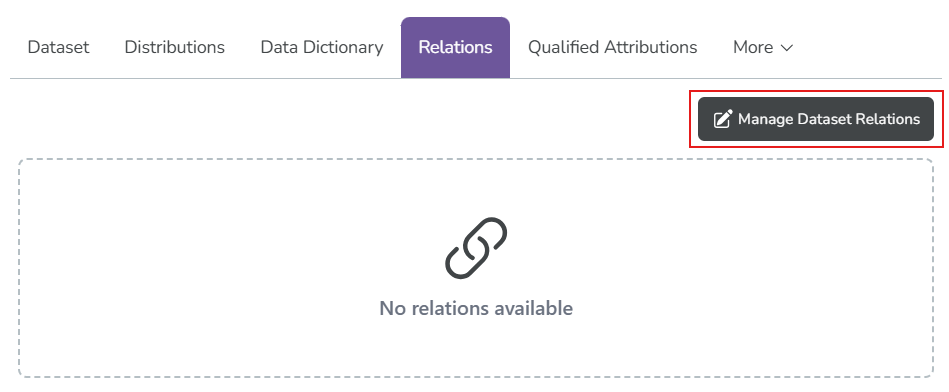
- Select View on the dataset, go to the Relations tab, and select Manage Dataset Relations
-
Select Dataset Relations in the left panel.
-
Select the type of relation you want to add:
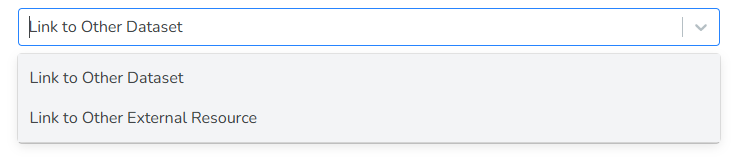
- Link to other dataset: Connect to another dataset within the platform
- Link to external resource: Connect to a resource outside the platform
To link to another dataset:
-
Select Link to other dataset on the add relation dropdown.
-
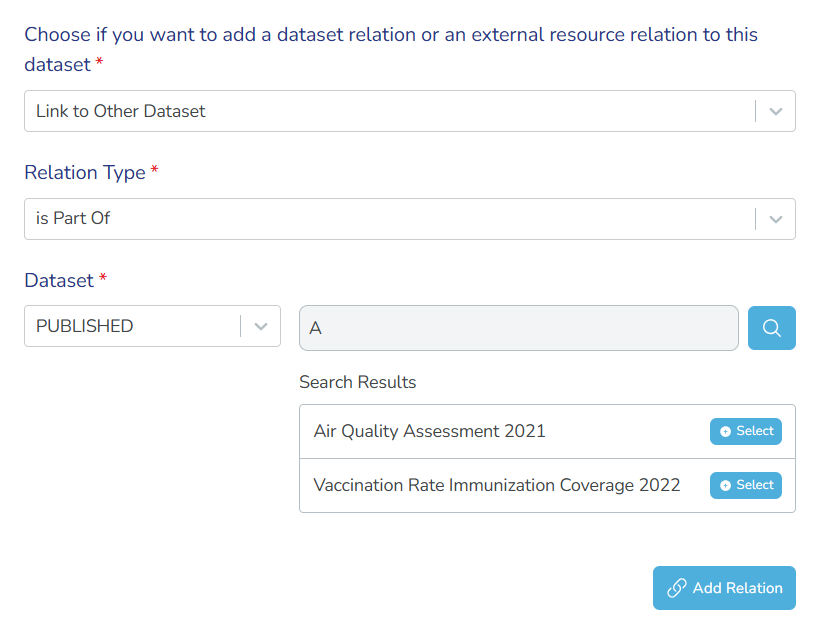
Fill out the relation form:
- Relation type: Select the relationship between the datasets. Learn about relation types↗.
- Dataset status: Select the status of the dataset you want to link to
- Dataset: Search and select the dataset name you want to link to
In this example, the dataset is part of a larger dataset collection that is published, called Air Quality Assessment 2021.
-
Select Add Relation to create the connection. Repeat for each relation.
To link to external resource:
-
Select Link to external resource on the add relation dropdown.
-
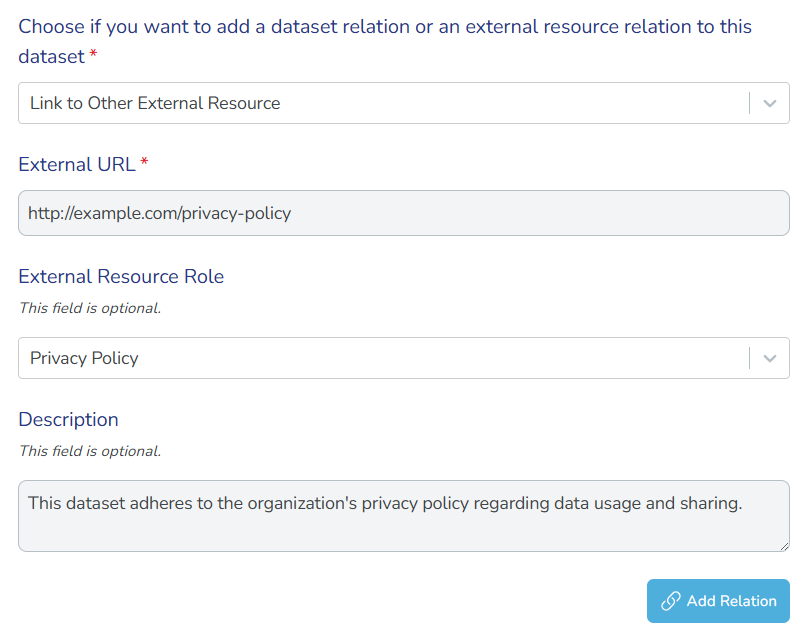
Fill out the external resource form:
- External URL: Enter the complete URL of the external resource
- External resource role: (Optional) Select the role this resource plays. Learn about resource roles↗.
- Description: (Optional) Enter a brief description of the external resource and its relevance
In this example, we link the dataset to a Privacy Policy published at an external URL.
-
Select Add Relation to create the connection. Repeat for each relation.
Multiple relationsYou can add multiple relations to the same dataset. For example, a dataset might reference external standards while also being linked to other related datasets that form a broader collection.
Manage existing dataset relations
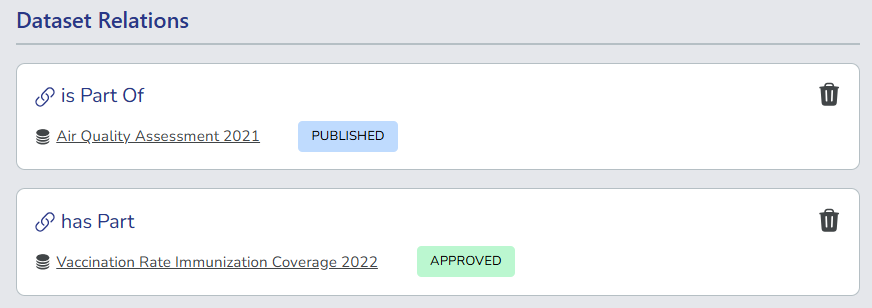
After you add relation entries, you can delete them as needed.
-
Open the dataset editor and select Dataset Relations in the left panel.
-
Locate the entry you want to remove in the relations list.
-
Select the delete icon (🗑️) in the Actions column to permanently remove the entry. Deleting a relation only removes the connection from your dataset. It does not affect the linked dataset or external resource.
After you add dataset relations, Data Users can discover connected resources in the published dataset metadata. This enhances context and helps users understand how datasets complement each other.