Add data services
In this guide
Overview
Add a data service
Add endpoints to a data service
Assign data services to distributions
Manage existing data services
Overview
Data services define API endpoints that provide access to datasets through services rather than downloadable files. When your data is accessed via an API or web service instead of file downloads (like CSV or PDF), you create data services to document these access methods.
By creating data services, you provide reusable definitions of API endpoints that can be assigned to multiple distributions across different datasets. This eliminates the need to duplicate endpoint information and ensures consistency when the same service provides access to multiple datasets.
How data services work:
- Catalogue Managers create data services that define API endpoints and their descriptions
- Data services are independent entities that can be reused across multiple distributions and datasets
- Editors assign existing data services to distributions when adding distributions
- Data consumers see the API endpoint information in the published distribution metadata
When to use data services:
Use data services when your dataset is accessed through:
- REST APIs that return data in JSON, XML, or other formats
- Web services that require API calls with parameters
- Service endpoints that provide dynamic data queries
This guide is for Catalogue Managers (or equivalent roles) who want to create and manage data services. If you're an Editor who wants to assign existing data services to distributions, see Add distributions.
Add a data service
Add data services to the system so Editors can assign them to distributions. You must be a Catalogue Manager or have the permission to manage form fields. Check your permissions.
To create a new data service:
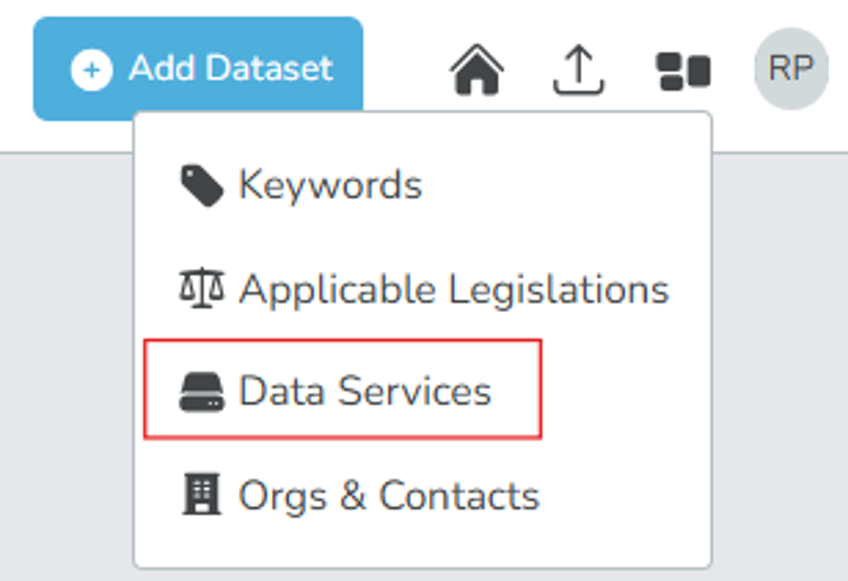
- Select the entities icon () beside your profile icon, and select Data Services.
-
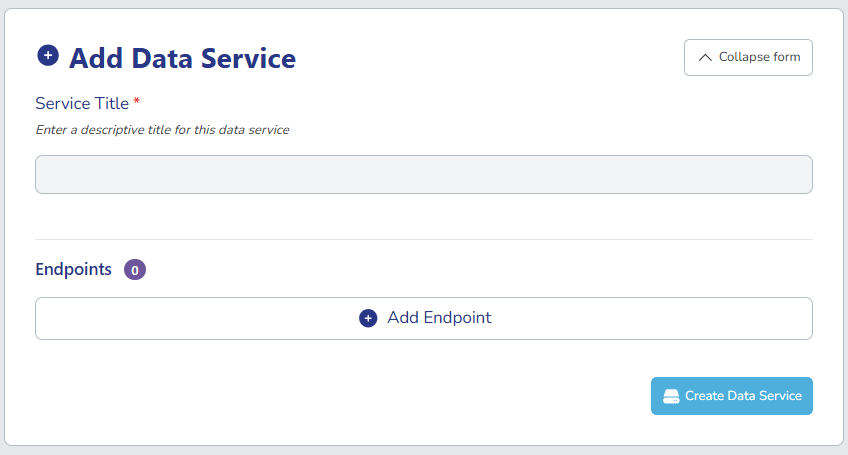
Select New Service or Expand Form. The Add Data Service form expands.
-
Enter the Service Title: a descriptive name for the API or service. For example: Hospital Staff Attendance API
-
Select Add Endpoint and enter the URL and description for at least one endpoint. For a detailed guidance, see: Add endpoints to a data service below.
-
Select Create Data Service. The new data service appears in the list and is now available for Editors to assign to distributions.
Add endpoints to a data service
Each data service must have at least one endpoint. An endpoint is a specific URL where data can be accessed along with an optional description of what it provides.
A single data service can have multiple endpoints when the API offers different operations. For example, an staff attendance API may have:
- One endpoint to list all attendance records:
https://api.example.com/attendance/list - Another endpoint to retrieve a specific employee's record:
https://api.example.com/attendance/employee/{id}
To add endpoints:
-
When creating or editing a data service, select Add Endpoint in the Endpoints section.
-
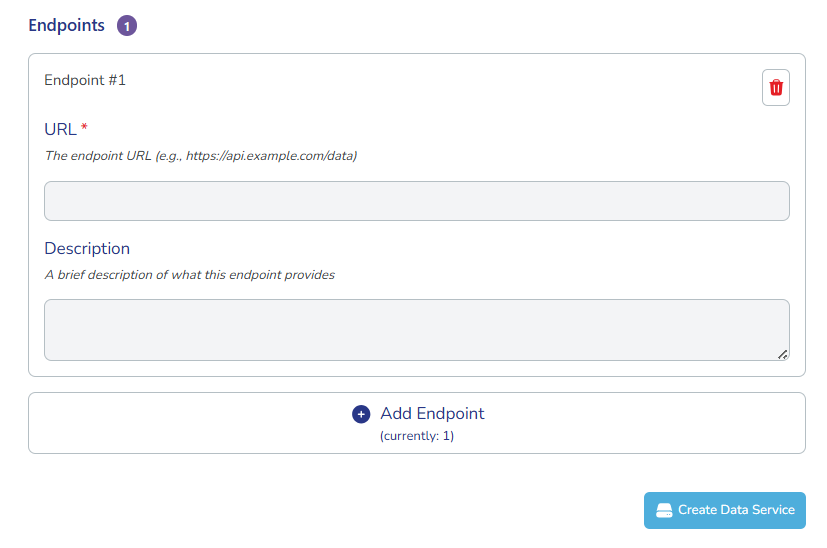
Fill in the endpoint details:
- Endpoint URL: The full URL of the API endpoint. For example,
https://api.personio.de/v1/company/attendances - Endpoint Description: An optional description explaining what this endpoint provides. For example, Retrieves employee attendance records
- Endpoint URL: The full URL of the API endpoint. For example,
-
To add more endpoints, select Add Endpoint again and repeat the process.
-
When you've added all endpoints, select Create Data Service (or Update Data Service if editing).
Once the data service is created, Editors can then assign it to any distribution that uses the said API for employee attendance data.
Assign data services to distributions
After you create data services, Editors can assign them to distributions when adding or editing distributions.
To assign data services to a distribution:
-
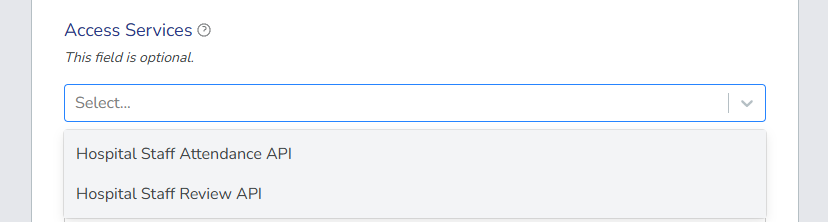
Add or edit an existing distribution for a dataset, select the Access Services field in the distribution form.
-
In the Access Services field, select your desired endpoint from the dropdown. You can select multiple endpoints if the distribution provides access through multiple APIs or services.
- Save your changes.
Manage existing data services
After you create data services, you can edit or delete them as needed.
-
In the data services list, search and locate the data service you want to manage. Use the filters to help find specific entries.
-
Select the edit icon () next to the data service.
-
Choose your action:
- Edit: Update the data service details. You can edit the title, add new endpoints, or modify existing endpoints. You can only delete individual endpoints if they are not currently in use by any distributions.
- Delete: Permanently remove the data service from the system. You can only delete data services that are not currently assigned to any distributions.
After you create data services, Editors can assign them to distributions when they add distributions. This provides consistent API endpoint documentation across your data catalogue.