Create dataset record series
In this guide
Overview
Dataset record series are ordered collections that group independent dataset records into a navigable sequence, helping Data Users discover and explore related datasets in a meaningful progression. Series provide a parent container that organizes member datasets in a specific order—ideal for temporal sequences or multi-part collections where the order matters.
Use dataset record series when:
-
You release data in periodic snapshots: For example, annual death statistics, quarterly economic indicators, or monthly weather summaries where each release is a complete, independent dataset for that specific period. Each dataset stands alone but follows a temporal sequence.
-
You have multi-part sequential collections: For example, a series of research studies (Phase 1 Trial, Phase 2 Trial, Phase 3 Trial) or progressive assessments (Baseline Environmental Survey, Year 1 Follow-up, Year 2 Follow-up) where the order provides context for understanding the collection.
How dataset series work:
- A dataset series is a parent dataset record that acts as an ordered container for member datasets
- Member datasets must be published records (you cannot add draft or deprecated datasets)
- The series itself appears in search results as a distinct dataset record
- Data Users can navigate from the series to individual members and understand the collection's structure
Dataset series organise independent datasets into ordered sequences. If you need to express specific relationship types between datasets (such as "depends on" or "is part of"), use dataset relations instead. For datasets that evolve over time with cumulative updates, use dataset versions.
Create a dataset series
To create a dataset series, you must be an Editor or have the permission to add datasets. Check your permissions.
-
Select Add dataset on the main menu to open the dataset form.
-
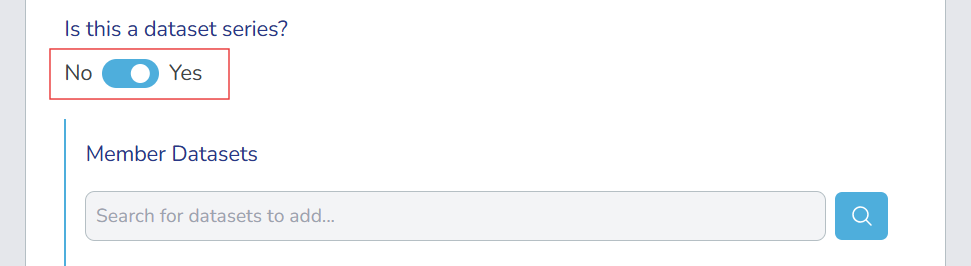
Locate the Is this a dataset series? toggle and set it to Yes. The Member Datasets section appears.
-
In the Member Datasets section, use the search bar to find and add published dataset recordss to your series.
-
Fill out the remaining fields in the form following the standard DCAT-AP-LU Vocabulary↗ conventions, or refer to the Create a dataset guide for detailed guidance on dataset creation.
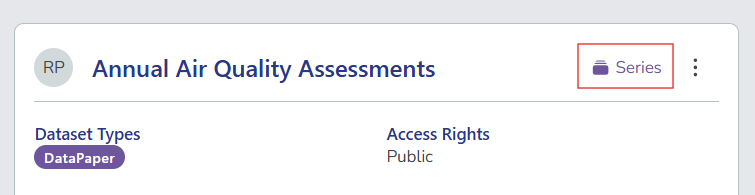
After you save the dataset series record, look for the Series label in the dataset record:
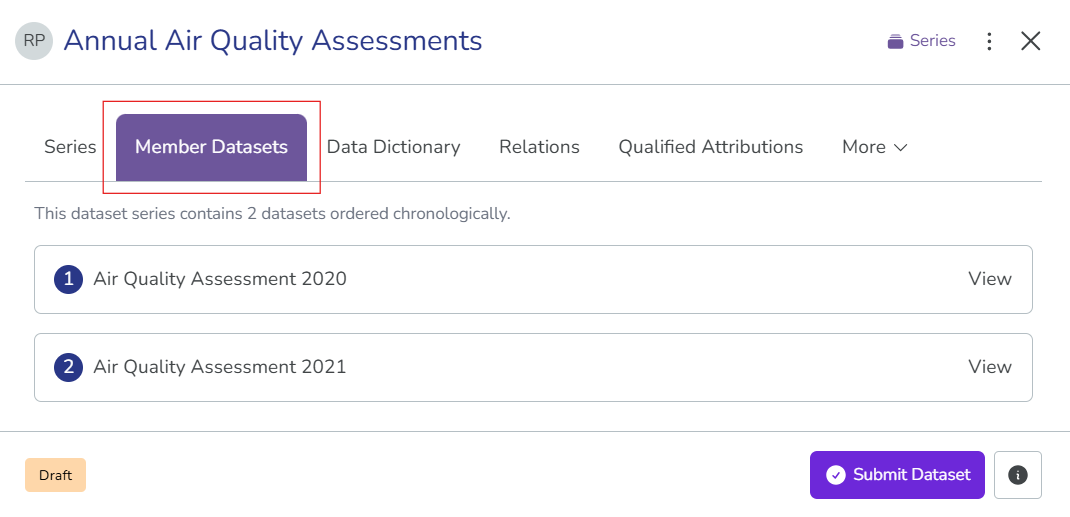
When you view the dataset record, you'll see members of the series under the Member Datasets tab:
Manage member datasets
After creating a dataset series, you can modify its member datasets by editing the series record.
To add, remove, or reorder member datasets:
-
Ensure the series record is in Draft, or revert it to draft if needed.
-
Open the series record in the Draft tab and select Edit.
-
In the Member Datasets section:
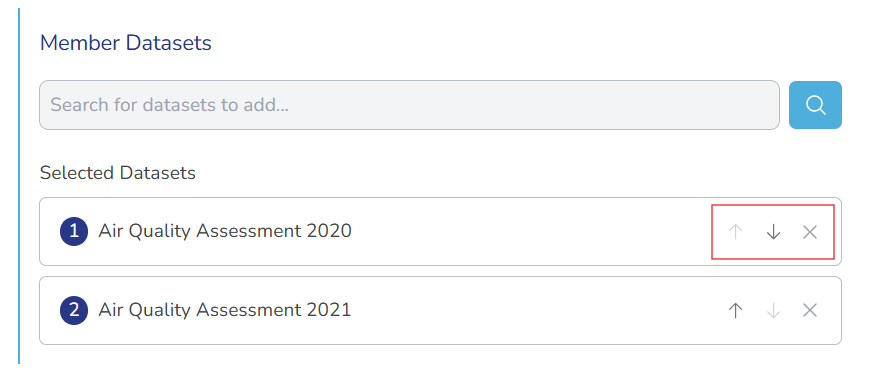
- To add: Search for and select additional published datasets.
- To remove: Select the delete icon (X) next to the dataset you want to remove.
- To reorder: Use the up/down arrows to change the sequence.
-
Select Preview & Save, then Save as Draft to save your changes.
-
When you're ready, submit the series for review to publish your changes.