Manage user assignments
In this guide
Overview
View user assignments
Add roles to existing users
Remove a role from a user
Remove a user from an organisation
Overview
After adding users to organisations, you can view and manage their role assignments. Users can have multiple roles within the same organisation, and you can add or remove roles as needed to match their changing responsibilities.
What you can do:
- View all user assignments across organisations
- Filter users by organisation, role, or assignment status
- Add additional roles to users who already have assignments
- Remove specific roles from users while maintaining their organisation membership
- Remove users completely from an organisation
View user assignments
-
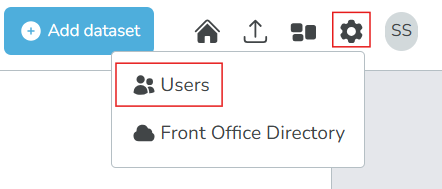
Select the settings icon () beside your profile icon, and then select Users.
-
The user list appears, along with their organisation and role assignments. Use the Filters section on the left to narrow down the list:
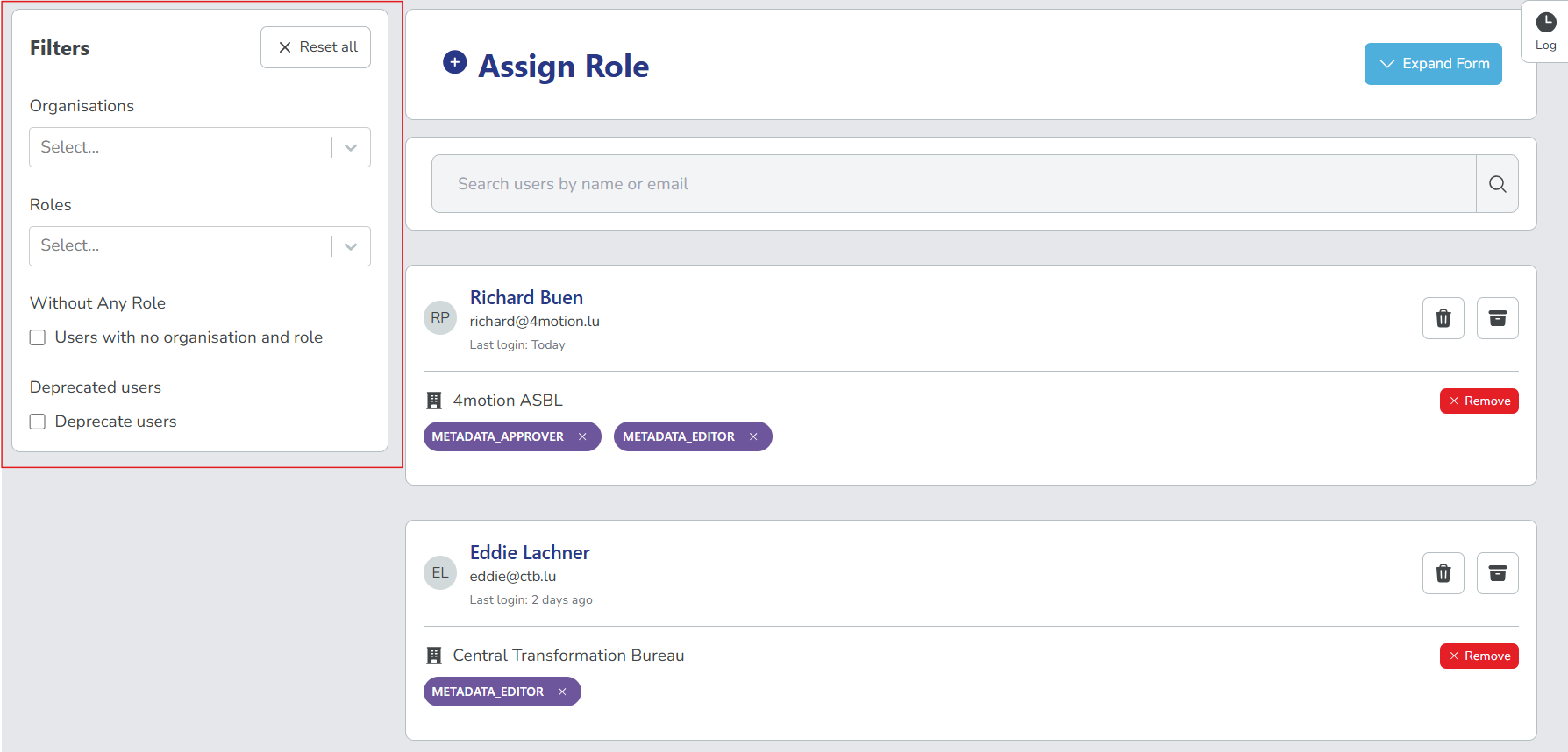
- Organisation: Show only users assigned to specific organisations
- Role: Show only users with specific roles
- without any role: Show only users who haven't been assigned any role
- Deprecated users: Show only users marked as deprecated
-
Use the search bar to find users by name or email address.
Each user entry shows their name, email, and all their organisation-role combinations. Users with multiple roles in the same organisation will have multiple role badges displayed under that organisation.
Add roles to existing users
You can assign additional roles to users who already have assignments within an organisation. This is useful when a user's responsibilities expand or change.
-
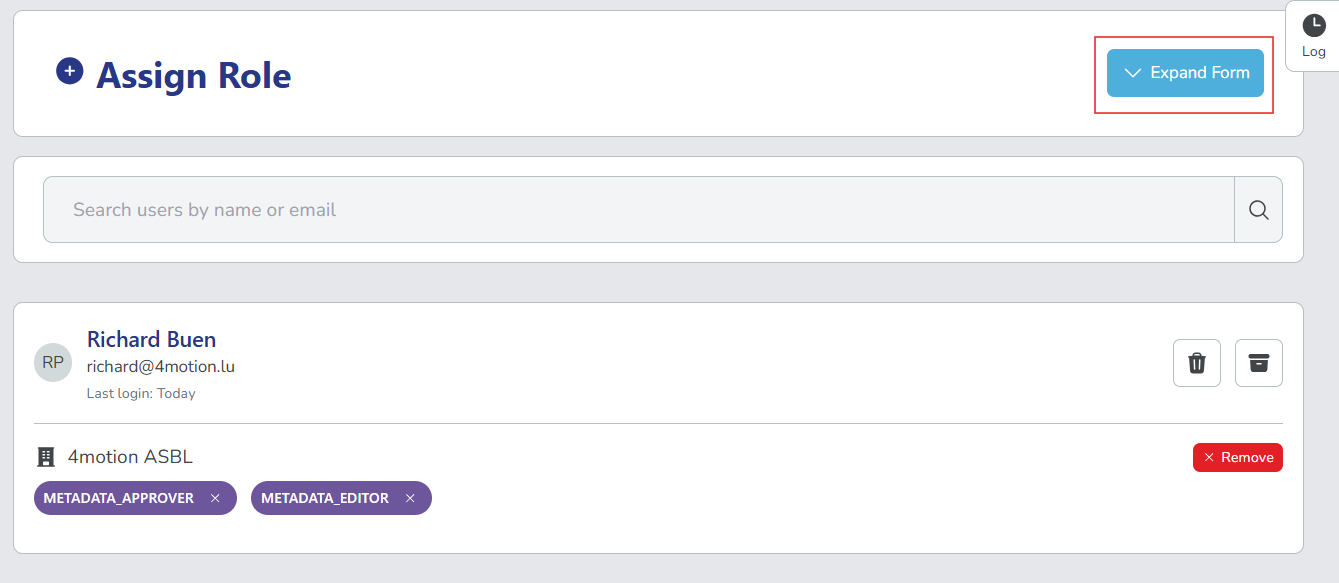
Select Expand Form above the user list to show the assignment form.
-
Fill out the form:
- Email: Enter the email address of the user who already has an assignment
- Organisation: Select the organisation where you want to add a role
- Role: Select the additional role to assign
-
Select Assign Role. The new role is added to the user's existing assignments within that organisation.
When you assign a role to a user who already has other roles in the same organisation, the system adds the new role without affecting their existing roles. Each role grants its own set of permissions, and the user will have access to all capabilities from all their assigned roles.
Remove a role from a user
Remove specific roles from users while keeping their organisation membership active. This is useful when a user's responsibilities change but they still need access to the organisation.
-
In the user list, locate the user whose role you want to remove.
-
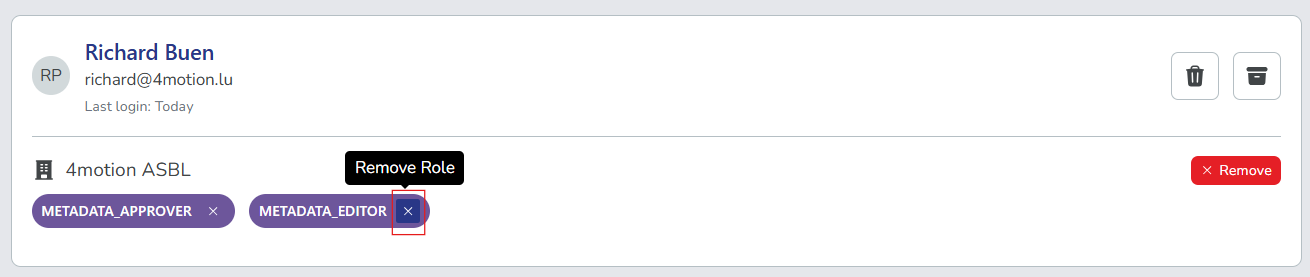
Select the delete icon (X) next to the specific role. In this example, the Metadata Approver role is being removed from the user.
 Removing all roles
If you remove all roles from a user within an organisation, the user will no longer have access to that organisation's resources. The user will remain in the system but will be unassigned from that organisation.
Remove a user from an organisation
Remove a user completely from an organisation by deleting all their role assignments at once.
-
In the user list, locate the user you want to remove from an organisation.
-
Select the Remove in the organisation row for that user. In this example, the user is being removed from the Central Transformation Bureau organisation.
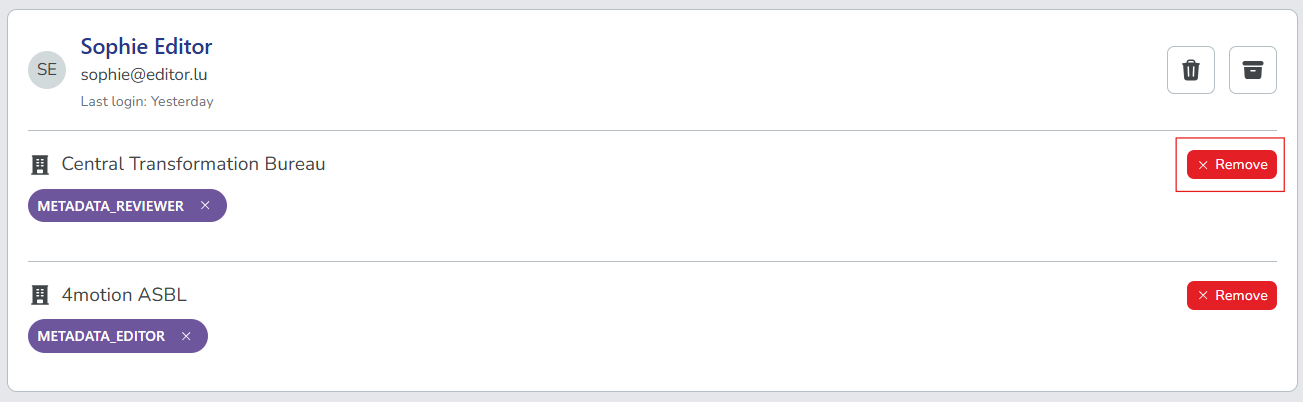
Removing a user from an organisation does not delete their user account. The user remains in the system and can be assigned to other organisations or re-assigned to the same organisation later if needed.