Track changes (Activity logs)
In this guide
Overview
View activity logs on datasets
View activity logs on organisations
Understanding the activity log entries
Overview
Activity logs provide an automated audit trail of changes and actions performed on datasets. They track who did what and when, ensuring transparency, accountability, and compliance throughout the dataset lifecycle.
For example: If a dataset was unexpectedly reverted to draft without any comments or explanation, you can check the activity log to see who reverted it, when, and review any comments they provided for context.
How activity logs work:
- Activity logs are automatically generated for every changes made to a dataset or organisation
- Activity logs are permanently stored and cannot be deleted
- Logs include details such as the user who performed the action, timestamp, action type, and specific changes made
View activity logs on datasets
To view the activity log for a dataset:
-
Search for the dataset and select View.
-
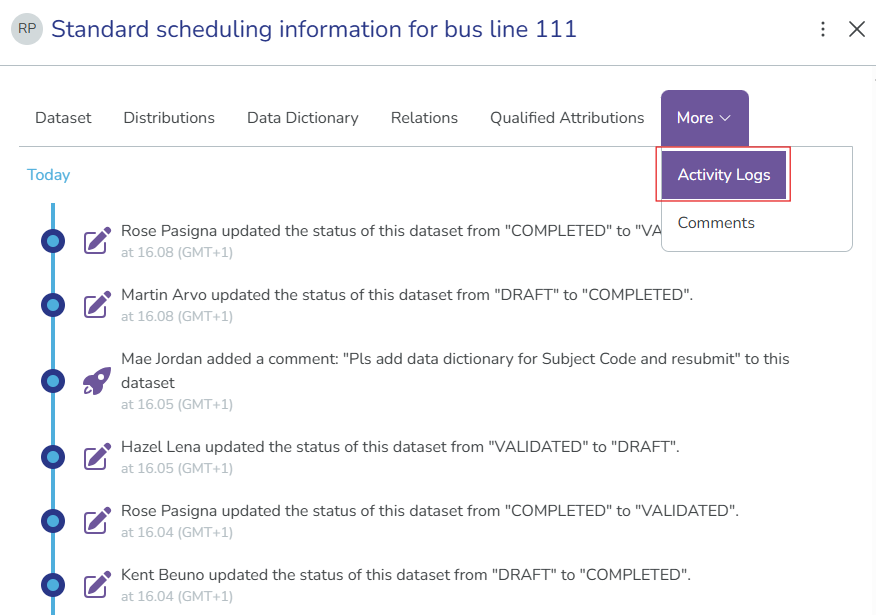
Select More and then the Activity Log tab. The activity log displays all recorded actions for the dataset with the most recent activity at the top.
View activity logs on organisations
-
Select the entity icon in the top right corner, and select Orgs & Contacts.
-
Select the organisation you want to view.
-
Select the Log on the upper right side of the page. The activity log displays all recorded actions for the organisation with the most recent activity at the top.

Understanding the activity log entries
Each log entry provides the following details:
- Timestamp: Date and time when the action occurred
- User: Name or identifier of the person who performed the action
- Action type: What was done (e.g., "Created", "Updated", "Published", "Status changed")
- Details: Specific changes made or additional context
Common action types include:
- Created: Dataset was initially created
- Status changed: Dataset moved to a different workflow stage (for example, from Draft to Completed)
- Published / Unpublished: Dataset was published or removed from publication
- Updated: Metadata fields were modified
- Distribution added/updated/deleted: Changes to dataset distributions
- Data dictionary modified: Changes to data dictionary entries
- Validated / Approved: Dataset passed validation or approval stages
- Reverted to draft: Dataset was moved back to draft state for further edits