Delete or deprecate users
In this guide
Overview
Delete or deprecate a user
Restore a deprecated user
Overview
Manage users who are no longer active in your organisation by either deleting or deprecating them. Understand the difference between these actions to help you keeping accurate record.
Delete vs. Deprecate:
| Action | When to use | Effect | Reversible |
|---|---|---|---|
| Delete | User has no activity or assignments | Permanently removes user from system | No |
| Deprecate | User had activity but is no longer active | Marks user as inactive; preserves historical records | Yes (can restore) |
-
Delete permanently removes a user account from the system. This is only possible for users who have no organisation assignments, datasets, legislations, or keywords, and are not Catalogue Managers.
-
Deprecate marks a user as inactive while preserving all their historical data and assignments. Deprecated users remain in the system for reference but can be filtered out from active user lists.
Consider deprecating users over deleting them. Deprecation maintains audit trails and historical records while clearly indicating that the user is no longer active.
Delete or deprecate a user
You must be a Catalogue Manager or have the permission to manage roles. Check your permissions.
-
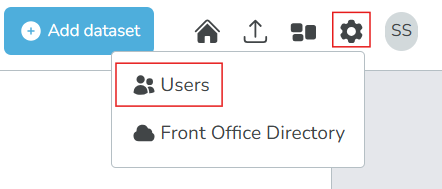
Select the settings icon () beside your profile icon, and then select Users.
-
Locate the user you want to delete or deprecate in the user list.
-
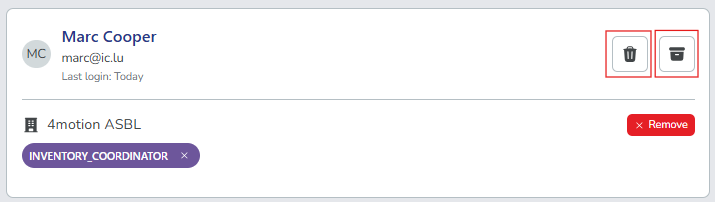
Select your action:
-
Delete: Select the trash icon () and then select Confirm to permanently delete the user.
-
Deprecate: Select the archive icon () and then select Confirm to deprecate the user.
Remember- When a deprecated or deleted user attempts to log in, they will see a message indicating their account is no longer active and to contact their administrator for assistance.
- You can restore deprecated users at any time. Deleted users cannot be restored.
-
Restore a deprecated user
Restore a user who was previously marked as deprecated to make them active again.
-
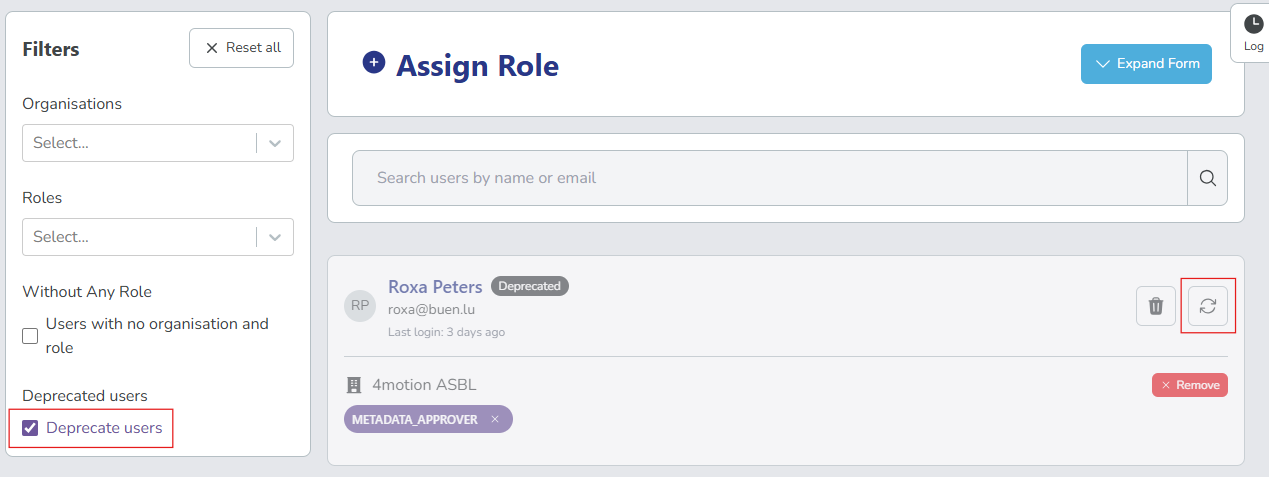
In the user list, select the Deprecated users filter to show only deprecated users.
-
Locate the user you want to restore in the filtered list.
-
Select the restore icon () beside the deprecated user.
-
Select Confirm to restore the user. The user is now active again and will appear in the regular user list without the "Deprecated" badge.