Publish dataset records (public)
In this guide
Overview
After a dataset record is approved, you can either publish it for external visibility or mark it as internal. Publishing dataset records allows users from other organisations to search and discover the dataset records in the ecosystem.
To understand the complete workflow for publishing dataset records, see: Publication workflow in the dataset record lifecycle guide.
Publish a dataset record
You must be a Catalogue Manager or have the permission to publish dataset records. Check your permissions. Dataset records ready for publication are found in the Approved tab of the datasets panel.
-
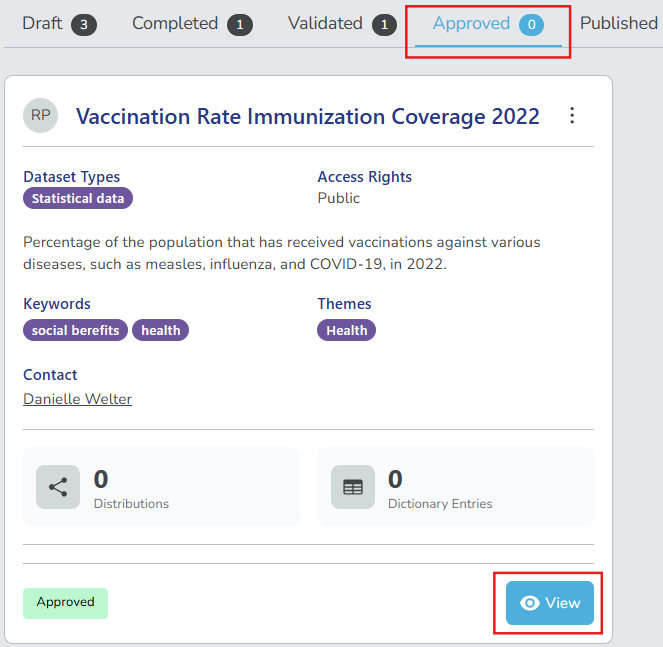
Go to the Approved tab in the datasets panel. Don't see any dataset records? Ensure the dataset record has been approved.
-
Select View on the dataset record you want to publish.
-
Review the dataset details found in the different tabs: Dataset, Distributions, Data Dictionary, Relations, Attributions and Comments.
-
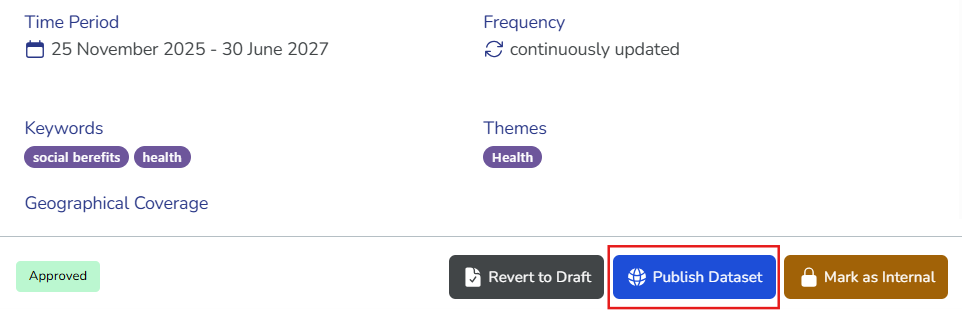
Select your action:
-
Publish Dataset: Make the dataset record externally visible outside your organisation. Add comments as needed, and select Publish Dataset again to confirm.
-
Mark as Internal: Keep the dataset record visible within your organisation only. The dataset record appears in the Internal Only tab and is not available to users outside your organisation.
-
Revert to Draft: Move the dataset record back to the Draft tab for further edits before publication. The dataset record is not available to users outside your organisation.
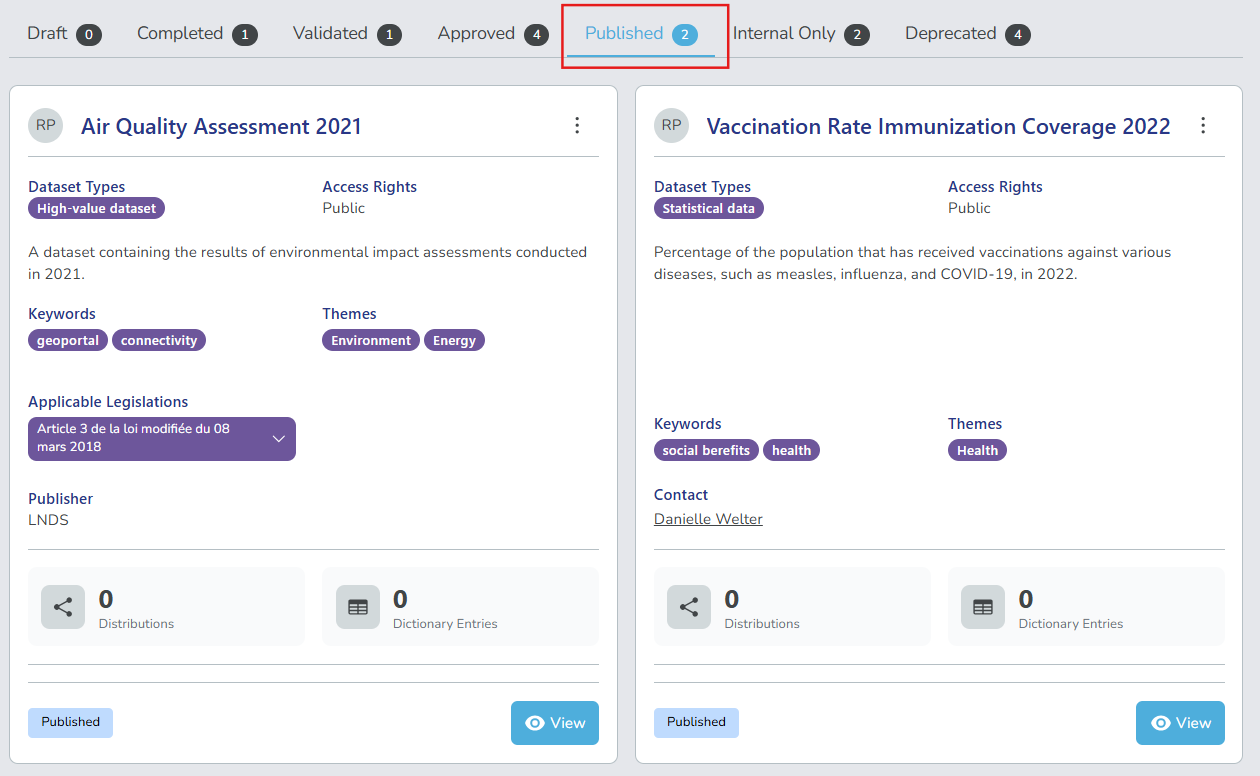
After you publish the dataset record, it appears in the Published tab and is available to users outside your organisation.
-