Assign authentic source
In this guide
Overview
Assign an authentic source
Manage authentic source labels
Overview
Assign authentic source labels to specific fields in your dataset's data dictionary to indicate that this field is the authoritative source of truth for this information within the Luxembourg public sector.
This functionality is reserved for the Catalogue Managers who manage authentic source assignments based on established governance policies. The steps below describe how to use the system to assign and manage these labels.
How authentic source works:
- Can only be assigned to published datasets
- Applied at the field level within the data dictionary of a dataset
- Persists even if a dataset is unpublished (reverted to its Approved state) or deprecated—authentic source labels remain until you manually remove them while the dataset record is in Published state.
Assign an authentic source
To assign authentic source labels, you must be a Catalogue Manager or have the permission to assign authentic source. Check your permissions.
-
Ensure the dataset record is in Published state, or publish it if needed.
-
Select View on the dataset record you want to assign an authentic source to.
-
Select the Data Dictionary tab. The data fields appear in table form.
-
Select the toggle under the Authentic Source column of the field you want to assign an authentic source to. The label field for entering the authentic source appears.
-
Enter the name and description of the organisation or entity that is the authentic source for this field. In this example, we enter National Telecom Registry as the authentic source for the Phone number field.
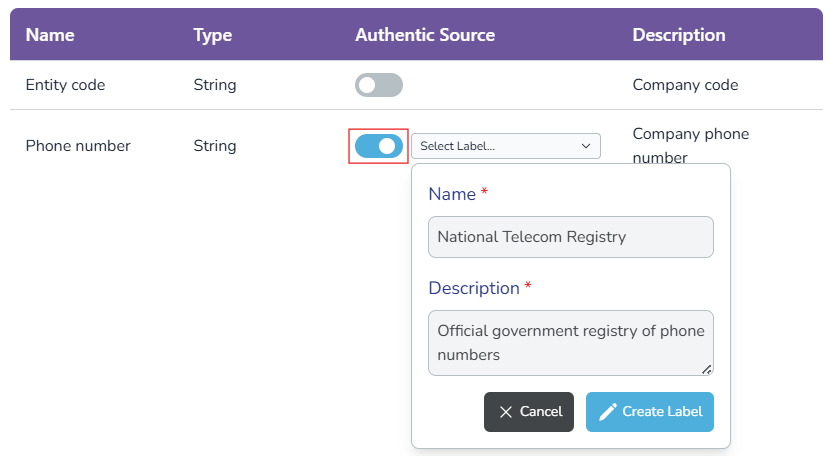
You can assign different authentic sources to different fields within the same dataset. In this example, you can assign a different authentic source for the Entity code field.
- Select Create Label. The authentic source label is now assigned to the field and appears in the data dictionary.
Authentic source labels remain even if the dataset record is unpublished or deprecated. Deprecated dataset records are no longer usable, while unpublished dataset records can only be reverted to the Approved state, preserving the label and overall dataset integrity. To remove authentic source labels, you must manually turn them off in the data dictionary while they are in Published state.
Manage authentic source labels
After you create authentic source labels, you can edit them or turn them on or off as needed.
-
Go to the Published tab and open the dataset record containing the authentic source label you want to manage.
-
Select the Data Dictionary tab.
-
Locate the field with the authentic source label you want to manage.
-
Select the toggle to turn off or turn on the authentic source assignment for that field.
After you assign authentic source labels, Data Users can identify which sources provide the official authoritative source of truth for this data element within the Luxembourg public sector. This supports better data governance and helps users make informed decisions about which datasets to use for their research or analysis.