Unpublish dataset records
In this guide
Overview
Unpublish dataset records to remove them from public visibility while maintaining their approved status. This action moves datasets back to the Approved state, allowing you to take down published datasets while keeping them ready for re-publication or marking as internal without requiring re-approval. Use this for temporary removal, policy changes, or when preparing datasets to be marked as internal.
For example: A dataset for Budget Allocations 2024 may need to be temporarily removed from public access due to policy changes. By unpublishing it, the dataset record returns to the Approved state and can be quickly republished or marked as internal once the issues are resolved.
When you unpublish a dataset record, the metadata is never deleted—even if the underlying dataset is withdrawn or deprecated. The record remains in the system, but is no longer publicly visible. Its status is updated, ensuring it is retained for reference and audit purposes, in line with FAIR principles.
How unpublishing works:
- Catalogue Managers (or equivalent roles) can unpublish dataset records in Published state
- Unpublished datasets move to the Approved tab and are no longer publicly visible
- Datasets can be republished, marked as internal, or reverted to draft from the Approved state
- No re-approval is required to republish an unpublished dataset
Unpublish a dataset
To unpublish a dataset, you must be a Catalogue Manager or have the permission to unpublish dataset records. Check your permissions.
-
Go to the Published tab in the datasets panel.
-
Select View on the dataset record you want to unpublish.
-
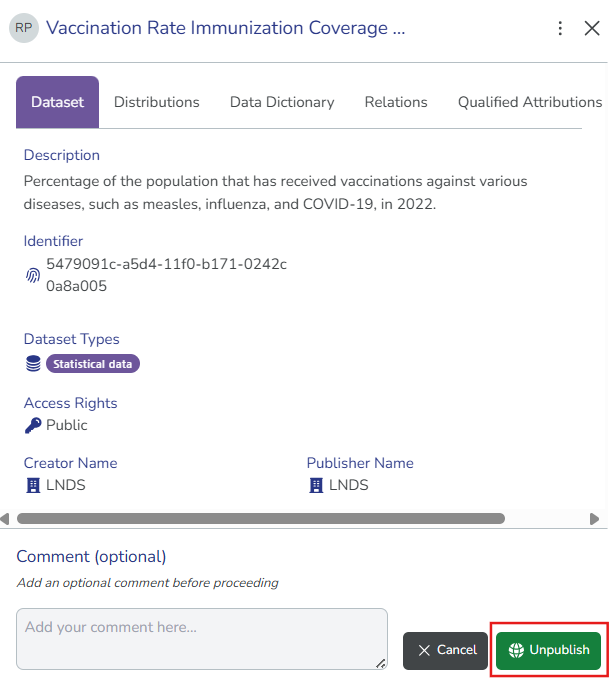
Select Unpublish. The comment field appears.
-
(Optional) Enter your comments explaining why you are unpublishing the dataset record to provide context to other collaborators.
-
Select Unpublish to confirm. The dataset record appears in the Approved tab and is no longer publicly visible.
Next stepsFrom the Approved tab, you have three options:
- Publish the dataset record: Make it publicly available again
- Mark as internal: Keep it visible only within your organisation
- Revert to draft: Move it back to Draft state for further edits and reapproval